In today’s digital landscape, chatbots have become an essential tool for businesses to enhance customer engagement and provide instant support. By leveraging the power of ChatGPT and fine-tuning techniques, you can create a personalized chatbot tailored specifically for your website. This article will guide you through the process of building your own customized chatbot using OpenAI’s ChatGPT model. Godfrey Nolan, President at RIIS, recently demonstrated how easy this can be at The OpenAI Application Explorers meetup. You can follow along in the video or read the post below to start building your own AI-powered chat bot.
Introduction
Chatbots powered by artificial intelligence have revolutionized the way businesses interact with their customers. They offer 24/7 support, and instant responses, and can handle a wide range of inquiries. However, generic chatbots may not always align with your brand’s voice or specific domain knowledge. This is where fine-tuning comes into play, allowing you to create a chatbot that truly represents your business.
The Basics of Fine-Tuning
Fine-tuning is a process that adapts a pre-trained language model to a specific task or domain. By training the model on a smaller, task-specific dataset, you can optimize its performance for your particular use case. This technique allows the model to leverage its existing knowledge while specializing in your area of interest.
Benefits of Fine-Tuning
Improved accuracy for domain-specific queries
Better alignment with your brand’s tone and voice
Reduced likelihood of generating irrelevant or incorrect information
Enhanced ability to handle specialized terminology or jargon
Data Preparation
The first step in creating your customized chatbot is preparing the training data. This data should consist of question-answer pairs that represent the types of interactions you expect your chatbot to handle.
Creating the Training Dataset
Compile a list of common questions and their corresponding answers relevant to your business or website.
Format the data as a JSON file with each entry containing a user message and an assistant response.
Aim for at least 50-100 question-answer pairs, but remember that more data generally leads to better results.
Here’s an example of how your input data might look:
[{"messages":[{"role":"user","content":"How do I check my data usage?"},{"role":"assistant","content":"You can check your data usage by logging into your account on our website or using our mobile app."}]},{"messages":[{"role":"user","content":"What should I do if my internet is slow?"},{"role":"assistant","content":"If your internet is slow, try restarting your modem and router, running a speed test, and ensuring your devices are within range of the Wi-Fi signal. If the problem persists, contact our support team for further assistance."}]}]
[{"messages":[{"role":"user","content":"How do I check my data usage?"},{"role":"assistant","content":"You can check your data usage by logging into your account on our website or using our mobile app."}]},{"messages":[{"role":"user","content":"What should I do if my internet is slow?"},{"role":"assistant","content":"If your internet is slow, try restarting your modem and router, running a speed test, and ensuring your devices are within range of the Wi-Fi signal. If the problem persists, contact our support team for further assistance."}]}]
[{"messages":[{"role":"user","content":"How do I check my data usage?"},{"role":"assistant","content":"You can check your data usage by logging into your account on our website or using our mobile app."}]},{"messages":[{"role":"user","content":"What should I do if my internet is slow?"},{"role":"assistant","content":"If your internet is slow, try restarting your modem and router, running a speed test, and ensuring your devices are within range of the Wi-Fi signal. If the problem persists, contact our support team for further assistance."}]}]
Converting to JSONL Format
OpenAI’s fine-tuning process requires the input data to be in JSONL (JSON Lines) format. You can use a simple Python script to convert your JSON file to JSONL:
importjsoninput_jsonl_file = "input_data.jsonl"input_json_file = "input_data.json"withopen(input_json_file,'r')asjson_file:
data = json.load(json_file)withopen(input_jsonl_file,'w')asjsonl_file:
forentryindata:
jsonl_file.write(json.dumps(entry) + '\')
print("Conversion to JSONL complete.")
importjsoninput_jsonl_file = "input_data.jsonl"input_json_file = "input_data.json"withopen(input_json_file,'r')asjson_file:
data = json.load(json_file)withopen(input_jsonl_file,'w')asjsonl_file:
forentryindata:
jsonl_file.write(json.dumps(entry) + '\')
print("Conversion to JSONL complete.")
importjsoninput_jsonl_file = "input_data.jsonl"input_json_file = "input_data.json"withopen(input_json_file,'r')asjson_file:
data = json.load(json_file)withopen(input_jsonl_file,'w')asjsonl_file:
forentryindata:
jsonl_file.write(json.dumps(entry) + '\')
print("Conversion to JSONL complete.")
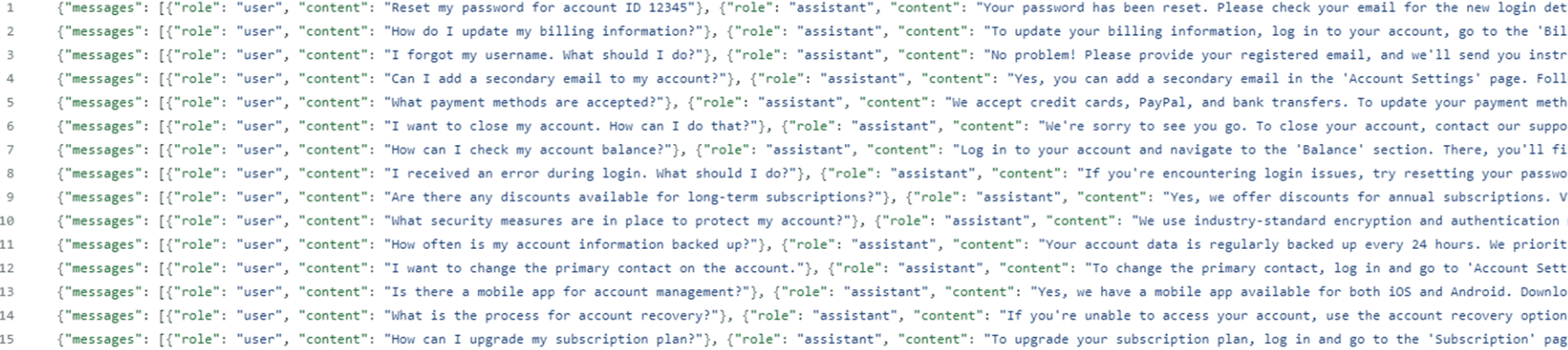
After running the script on your data, the output should look something like this:
Uploading the Training Data
Once your data is prepared, the next step is to upload it to OpenAI for fine-tuning. This can be done using the OpenAI API or manually through the OpenAI playground on the website. If you want to do this programmatically use the script below:
importconfigfromopenaiimportOpenAIclient = OpenAI(api_key=config.OPENAI_API_KEY)input_jsonl_file = "input_data.jsonl"file = client.files.create(file=open(input_jsonl_file,"rb"),purpose="fine-tune")print("File has been uploaded to OpenAI with id ",file.id)
importconfigfromopenaiimportOpenAIclient = OpenAI(api_key=config.OPENAI_API_KEY)input_jsonl_file = "input_data.jsonl"file = client.files.create(file=open(input_jsonl_file,"rb"),purpose="fine-tune")print("File has been uploaded to OpenAI with id ",file.id)
importconfigfromopenaiimportOpenAIclient = OpenAI(api_key=config.OPENAI_API_KEY)input_jsonl_file = "input_data.jsonl"file = client.files.create(file=open(input_jsonl_file,"rb"),purpose="fine-tune")print("File has been uploaded to OpenAI with id ",file.id)
Make sure to store your OpenAI API key securely, preferably in a separate configuration file. This is referenced in the code above with the import config at the top, and then the config.OPEN_API_KEY method when setting the client variable. Your config.py file should look something like this:
OPENAI_API_KEY="{{INSERT YOUR OPENAI API KEY HERE}}"
OPENAI_API_KEY="{{INSERT YOUR OPENAI API KEY HERE}}"
OPENAI_API_KEY="{{INSERT YOUR OPENAI API KEY HERE}}"
If your file was uploaded successfully you should see this message in the command line.
You can also see this in more detail within the OpenAI dashboard under the Files tab.
Creating the Fine-Tuning Job
After uploading your training data, you can create a fine-tuning job:
fromopenaiimportOpenAIimportconfigclient = OpenAI(api_key=config.OPENAI_API_KEY)file_id = "file-sO8gDViouzBHiKefhzXXXXXX"ft_job = client.fine_tuning.jobs.create(training_file=file_id,model="gpt-3.5-turbo")print("Fine Tune Job has been created with id ",ft_job.id)events = client.fine_tuning.jobs.list_events(fine_tuning_job_id=ft_job.id,limit=10)print(events)
fromopenaiimportOpenAIimportconfigclient = OpenAI(api_key=config.OPENAI_API_KEY)file_id = "file-sO8gDViouzBHiKefhzXXXXXX"ft_job = client.fine_tuning.jobs.create(training_file=file_id,model="gpt-3.5-turbo")print("Fine Tune Job has been created with id ",ft_job.id)events = client.fine_tuning.jobs.list_events(fine_tuning_job_id=ft_job.id,limit=10)print(events)
fromopenaiimportOpenAIimportconfigclient = OpenAI(api_key=config.OPENAI_API_KEY)file_id = "file-sO8gDViouzBHiKefhzXXXXXX"ft_job = client.fine_tuning.jobs.create(training_file=file_id,model="gpt-3.5-turbo")print("Fine Tune Job has been created with id ",ft_job.id)events = client.fine_tuning.jobs.list_events(fine_tuning_job_id=ft_job.id,limit=10)print(events)
Be sure and replace your file_id with the file ID for your specific training data before running the script.
If the job has successfully been created, you will see a message like this in the command line.
In this response, look for the ftjob- prefix to find your fine-tuning job id. If you go back to the OpenAI dashboard again in the Fine-tuning tab, you can find the job.
This process may take some time, depending on the size of your dataset and the current load on OpenAI’s servers. You can monitor the progress of your fine-tuning job through the OpenAI dashboard or by querying the API.
You can get some feedback on the job process, but how useful it will be is debatable.
When it has succeeded you will see this in top right.
And your training data now has a model number. Copy that whole id starting with ft: down to the last letter. You will need it soon.
Implementing the Chatbot
Once your fine-tuned model is ready, you can integrate it into your website. We are going to build a simple Flask application that demonstrates how to create a web-based chatbot interface. First, you will need to create a app.py file. Then create a templates folder, and within that folder create an index.html file.
Now when you run app.py in the console. It will give you an IP address which you can copy into the browser. You should see something like this:
Start asking away!
Best Practices and Considerations
Data Quality: Ensure your training data is high-quality, diverse, and representative of the queries your chatbot will encounter.
Regular Updates: Periodically update your training data and retrain your model to keep it current with new information or changes in your business.
Monitoring and Feedback: Implement a system to monitor your chatbot’s performance and collect user feedback for continuous improvement.
Fallback Mechanisms: Have a plan for handling queries that fall outside your chatbot’s knowledge domain, such as redirecting to human support.
Ethical Considerations: Be transparent about the use of AI in your chatbot and ensure it adheres to ethical guidelines and privacy regulations.
Conclusion
Creating a customized website chatbot using ChatGPT and fine-tuning techniques allows you to provide personalized, efficient support to your website visitors. By following the steps outlined in this article, you can develop a chatbot that accurately represents your brand and effectively addresses your customers’ needs.
Remember that building an effective chatbot is an iterative process. Continuously gather feedback, analyze performance, and refine your model to ensure it provides the best possible user experience. With dedication and ongoing improvement, your customized chatbot can become a valuable asset for your website and business.