Introduction
What if you could run a capable OpenAI model entirely on your own hardware, with no API costs, no data leaving your network, and no dependency on an external service? GPT-OSS makes that possible. It is OpenAI’s open-weight large language model, the first such release from the company since GPT-2, and it is free to use on hardware you control.

GPT-OSS is available in two sizes: a 20 billion parameter model and a 120 billion parameter model. Both are licensed under Apache 2, meaning anything you build with them is yours. The model supports reasoning, chain-of-thought (CoT) output, tool calling, and agentic workflows, the same capabilities engineers rely on from hosted APIs, delivered locally.
This tutorial covers everything you need to go from zero to a running GPT-OSS deployment. You will set up Ollama to serve the model locally, make chat completion and tool-calling API requests using the OpenAI Python SDK, build single and multi-agent systems, explore deployment options, and fine-tune the model with LoRA for specialized use cases. As usual, you can watch along with the video or follow the written tutorial below:
What Is GPT-OSS?
The term “open source” means something specific in the LLM world, and it is different from what software engineers typically expect. GPT-OSS does not give you the training source code or the training data. What you get are the model weights, and because those weights are open, you can modify and fine-tune the model for your own purposes. This is what the industry calls an open-weight model.
GPT-OSS is the first open-weight model OpenAI has released since GPT-2. That earlier release had an outsized impact on the field: the GPT-2 weights and the transformer architecture described in its paper seeded the research community and eventually led to the millions of models now available on Hugging Face, including LLaMA, Mistral, and Qwen. GPT-OSS represents a return to that approach.
Model Sizes and License
GPT-OSS comes in two variants. The 20 billion parameter model requires at least 16 GB of GPU VRAM, while the 120 billion parameter model requires 80 GB. Both are released under the Apache 2 license, so anything you build on top of them is yours to use and distribute.
20B parameters: minimum 16 GB GPU VRAM, suitable for Nvidia RTX 3/4/5 series cards
120B parameters: minimum 80 GB GPU VRAM, intended for production-grade inference
Apache 2 license: commercial use is permitted
Capabilities
GPT-OSS is a reasoning model. Like the hosted OpenAI models, it supports low, medium, and high reasoning effort settings. It exposes a chain of thought, letting you see how it works through a problem before producing a final answer. It also supports tool calling, structured outputs, web search, file search, and agentic workflows, all of which are covered in later sections of this tutorial.
The Safeguard Model
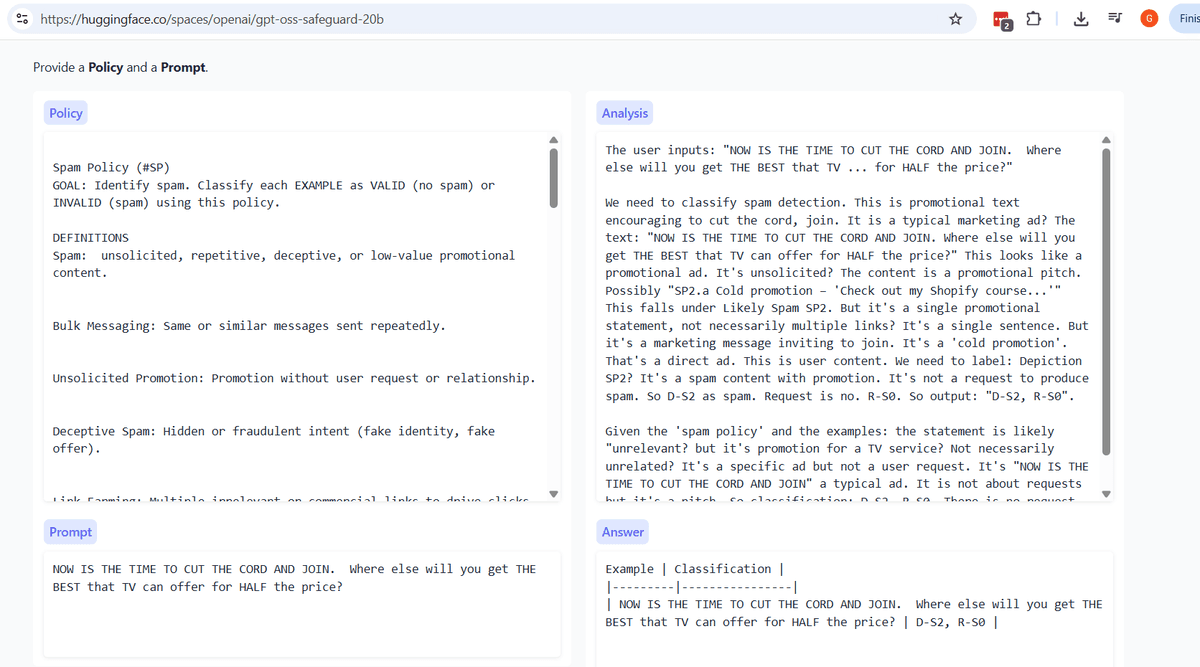
Alongside the main model, OpenAI also released a Safeguard variant. This is a separate model designed for content moderation and policy enforcement. You provide a policy as the system message and a piece of text as the user message; the Safeguard model then analyzes whether that text violates the policy.
A practical example: you could define a spam detection policy and pass in the candidate email copy to check for compliance before sending. The same pattern works for screening personally identifiable information, enforcing internal communication guidelines, or flagging HIPAA-sensitive content. The Safeguard model is available in both 20B and 120B sizes, and when using it, you reference it with the model identifier gpt-oss:safeguard.
Built-In Tools: Web Search, File Search, and Web Browser
Beyond the Safeguard model, GPT-OSS ships with three built-in tools that extend what the model can do on its own. Each tool addresses a different gap: stale training data, access to private documents, and autonomous task execution.
Web Search
GPT-OSS was trained on data up to a certain point in time. Any event or piece of information after that cutoff is simply unknown to the model. The web search tool solves this by letting GPT-OSS query the internet at inference time, giving it access to current information. You can enable it from the API or from the Ollama web UI.
A practical example: if you ask GPT-OSS about a recent sports result or a current news event, it will use web search to look up a live answer rather than guessing from its training data. Note that using web search from the Ollama web UI requires a free Ollama account login.
File Search
File search is arguably the most important tool for business use cases. It lets you upload PDFs, text files, and other documents so that GPT-OSS can search and reason over them at query time. This is the foundation for building retrieval-augmented generation (RAG) pipelines over private corporate data.
Upload sales reports and ask for summaries, top performers, or product breakdowns
Ingest internal policy documents and query for compliance information
Load any private dataset without sending it to a third-party API
Because GPT-OSS runs locally, this entire workflow stays inside your network. No documents leave the machine, which makes file search particularly well-suited to HIPAA-sensitive data or any situation where your organization prohibits external data transfer.
Web Browser (Computer-Use Agent)
The third tool is a web browser agent, also referred to as a computer-use agent. In principle, it allows GPT-OSS to open a browser and perform actions on your behalf, such as navigating to a site or completing a form. In practice, this capability is not yet production-ready. It exists, and you can experiment with it, but the consensus is that computer-use agents still require significant human oversight before they can be trusted in real workflows.
When to Use GPT-OSS: Motivation and Use Cases

The tools covered in the previous section are compelling, but they raise a natural question: why run GPT-OSS locally at all when hosted APIs like GPT-4 are just an HTTP call away? The answer comes down to four factors: cost, privacy, batch processing, and the ability to specialize the model itself.
Cost: Free Inference at Scale
Once your hardware is in place, inference with GPT-OSS costs nothing. There are no tokens to purchase, no API rate limits to hit, and no surprise billing events at the end of the month. This matters especially for agentic workflows, which can loop repeatedly and accumulate token costs quickly on a paid API.
Batch processes are another natural fit. Running GPT-OSS overnight to generate dozens of documents, analyze large datasets, or process a backlog of requests carries zero marginal cost per run. With a hosted API, the same workload translates directly into dollars.
Privacy: Keeping Data Inside Your Organization
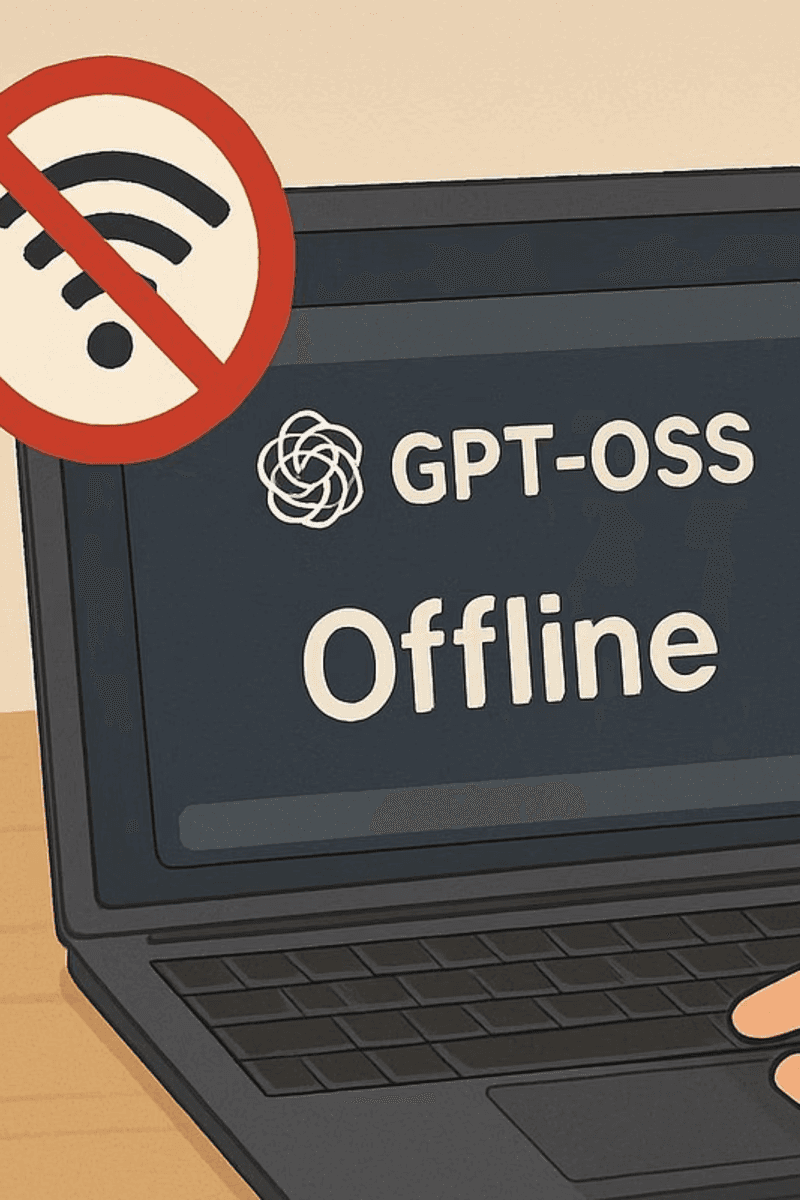
Many organizations have strict requirements around data leaving their network. This applies to healthcare data subject to HIPAA, proprietary business data, and any scenario where leadership requires that no external party can access company information. Running GPT-OSS locally means you can turn off Wi-Fi entirely and the model still works. Nothing is transmitted to a third-party server.
HIPAA-regulated healthcare records that cannot touch external APIs
Proprietary sales data, internal reports, or strategic documents
Situations where even enterprise API agreements do not satisfy internal security policy
Air-gapped environments with no internet connectivity
Batch Processing and Offline Workloads
GPT-OSS is particularly well-suited for tasks that do not require an immediate response. Content generation, document summarization, RAG over private corporate data, and other background jobs can run unattended. You queue the work, let the model run, and collect results without worrying about API quotas or costs.
Fine-Tuning for Specialized Domains
Because GPT-OSS is open-weight, you can retrain parts of the model to specialize it for a specific domain. General-purpose hosted models are broad by design. Fine-tuning lets you create a version optimized for a narrower task, such as financial analysis, medical Q&A, or multilingual reasoning, in ways that a standard API call cannot replicate.
The Speed Tradeoff
There is one honest caveat: local inference is slower than a well-provisioned cloud API. On a single consumer GPU, responses take noticeably longer than the equivalent call to a hosted model. If your use case is latency-sensitive, such as a real-time customer-facing chatbot, the hosted API may still be the better choice. For batch work, overnight jobs, or internal tooling where a few extra seconds per response is acceptable, the speed tradeoff is easy to absorb.
Getting Started: Hardware Requirements and Ollama Setup

With the motivations clear, the next step is getting GPT-OSS running on your own machine. There are two paths: use the hosted playground at gpt-oss.com for a hardware-free trial, or run the model locally with Ollama for the full private, offline experience.
Try It Without Hardware: The Hugging Face Playground
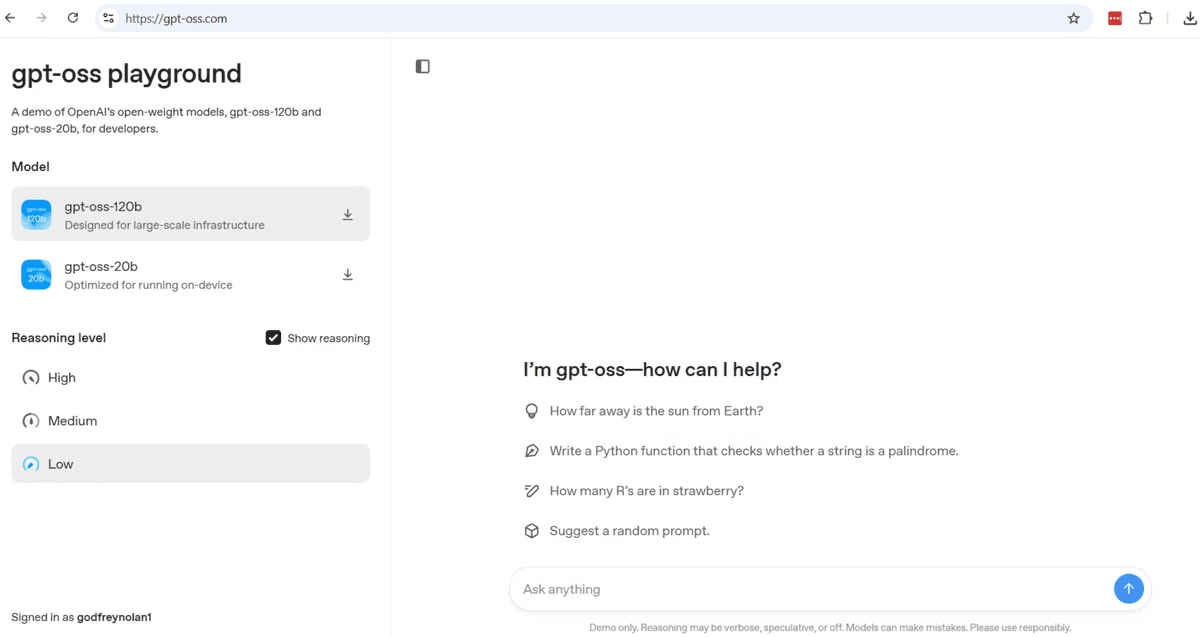
If you want to evaluate GPT-OSS before committing to hardware, visit gpt-oss.com. This playground is hosted by Hugging Face and lets you select either the 20B or 120B parameter model, choose a reasoning level (low, medium, or high), and run queries directly in the browser. You will need to create a Hugging Face account to log in.
Responses from the hosted version are fast because the inference runs on Hugging Face’s GPU infrastructure. Keep in mind that this route sends your prompts to an external server, so it does not satisfy the privacy requirements discussed earlier. It is best suited for exploration and testing.
Hardware Prerequisites for Local Deployment
Running GPT-OSS locally requires an Nvidia GPU with sufficient VRAM. The two model sizes have different requirements:
20B parameter model: requires at least 16 GB of GPU VRAM. Compatible with Nvidia RTX 3, 4, or 5 series cards.
120B parameter model: requires at least 80 GB of GPU VRAM. This is a substantially more expensive machine, typically in the range of several thousand dollars.
For most batch processing, RAG pipelines, and agent workloads, the 20B model is sufficient. The 120B variant is worth considering only if you are running production-grade inference that demands the highest accuracy.
Installing Ollama and Pulling the Model
Ollama is the local runtime used to serve GPT-OSS. After downloading and installing Ollama from ollama.com, pull and start the 20B model with a single command. The first run downloads the model weights, which are approximately 13 GB, so expect the initial download to take some time depending on your connection speed. Subsequent starts are nearly instant.
bashCopy
Ollama automatically detects your GPU and offloads inference to it. If you are unsure whether it is picking up your hardware correctly, run either of the following diagnostic commands:
The first command reports what Ollama sees, including GPU details. The second is the standard Nvidia utility that shows GPU memory usage and utilization. You can also open Windows Task Manager and check GPU activity while a query is running to confirm the model is using your graphics card rather than the CPU.
Accessing the Ollama Web UI
Ollama includes a local web interface that provides a chat-style front end similar to the Hugging Face playground. From there you can select GPT-OSS as the active model, adjust reasoning levels, enable web search, and upload files for file search.
Add image
One important setting to note is “Expose Ollama to the network”: enabling this allows other machines on your LAN to reach the model, which is covered in the next section on API calls.
API Calls: Chat Completions
With Ollama running and the model loaded, you can call GPT-OSS from Python using the same OpenAI SDK you already know. The key difference is that you point the client at your local Ollama server instead of OpenAI’s cloud endpoint. Because no API key is required for local inference, you supply a dummy string to satisfy the SDK’s requirement.
The Hello World: Local Chat Completion
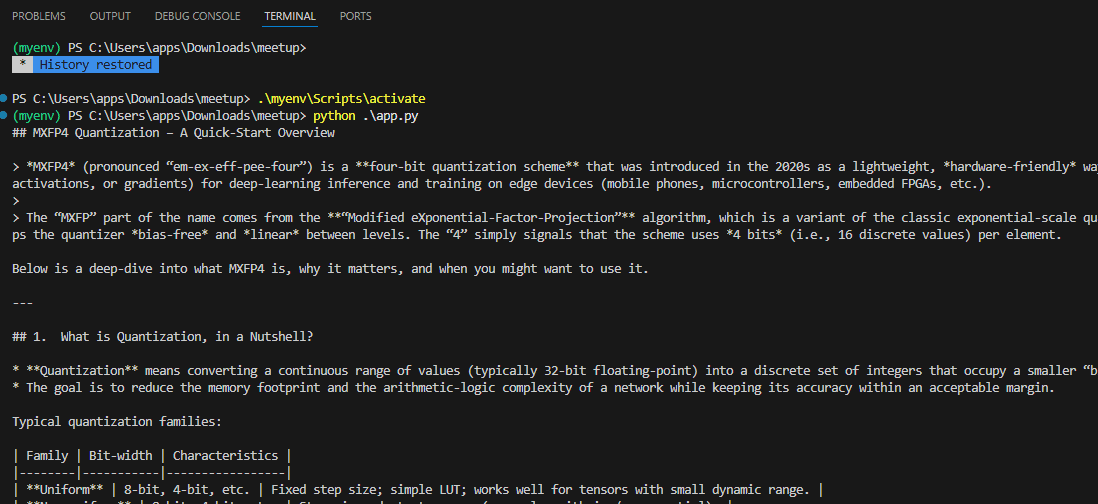
The following example connects to Ollama on the same machine running the script. Notice that the endpoint is localhost on port 11434, and the model name matches exactly what you pulled with Ollama.
This uses client.chat.completions.create, not the newer responses API. Ollama does not support the responses API, so you need to use the chat completions pattern. If you have existing code written for GPT-3.5, it will work here with minimal changes: update the base URL, set the API key to a dummy value, and change the model name.
Calling GPT-OSS from Another Machine on Your LAN
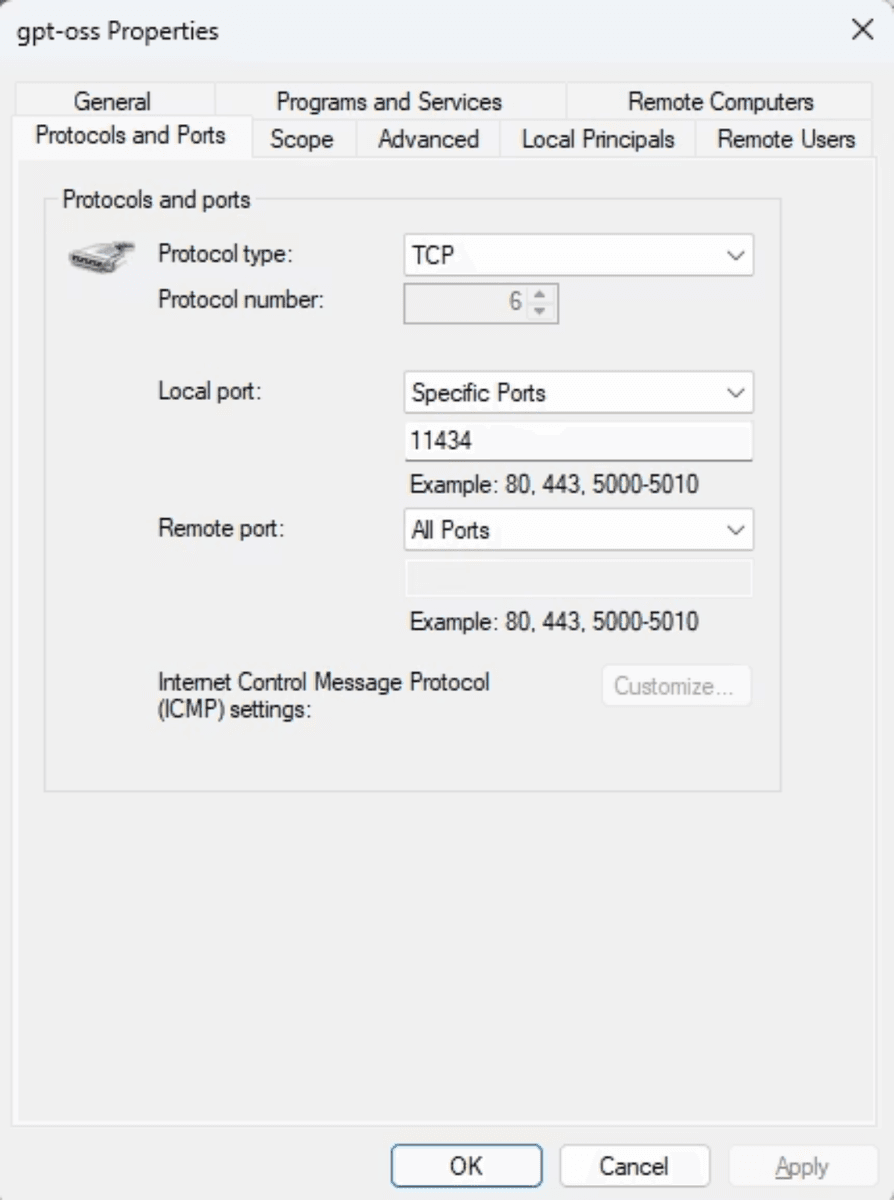
If your GPU machine is a desktop and you want to call it from a laptop or another device on the same network, two things need to be in place first. In the Ollama settings, enable “Expose Ollama to the network”. Then open TCP port 11434 in your Windows Firewall for incoming connections.
Once those are configured, replace localhost with the LAN IP address of the machine running Ollama. The rest of the code stays the same.
Exposing GPT-OSS Beyond Your LAN
To share your local GPT-OSS instance with people outside your network, you can use a tunneling tool such as Ngrok or Cloudflare. These open an encrypted tunnel from a public URL to your local Ollama port. The public URL they generate can then be used as the base_url in any client, effectively letting you share a private ChatGPT-style endpoint with colleagues or collaborators.
Run Ngrok or Cloudflare tunnel pointed at port 11434
Copy the generated public URL (e.g., https://abc123.ngrok.io)
Use that URL as base_url in the OpenAI client instead of the LAN IP
Anyone with that URL can query your local model without tokens or API costs
Response latency over the LAN or a tunnel will be higher than what you saw in the Hugging Face playground, because inference is running on your local hardware rather than a high-throughput GPU cluster. For batch jobs and background processing this is acceptable. For interactive, latency-sensitive applications, it is worth factoring in the speed tradeoff before choosing this route.
Batch Content Generation
With the API connection working, one of the most compelling use cases for GPT-OSS is batch processing: queuing up many requests and letting them run unattended overnight or over a weekend. Because you are not paying per token, there is no cost spiral if a job runs longer than expected. The blog generation example demonstrates exactly this pattern.
How the Batch Blog Generator Works
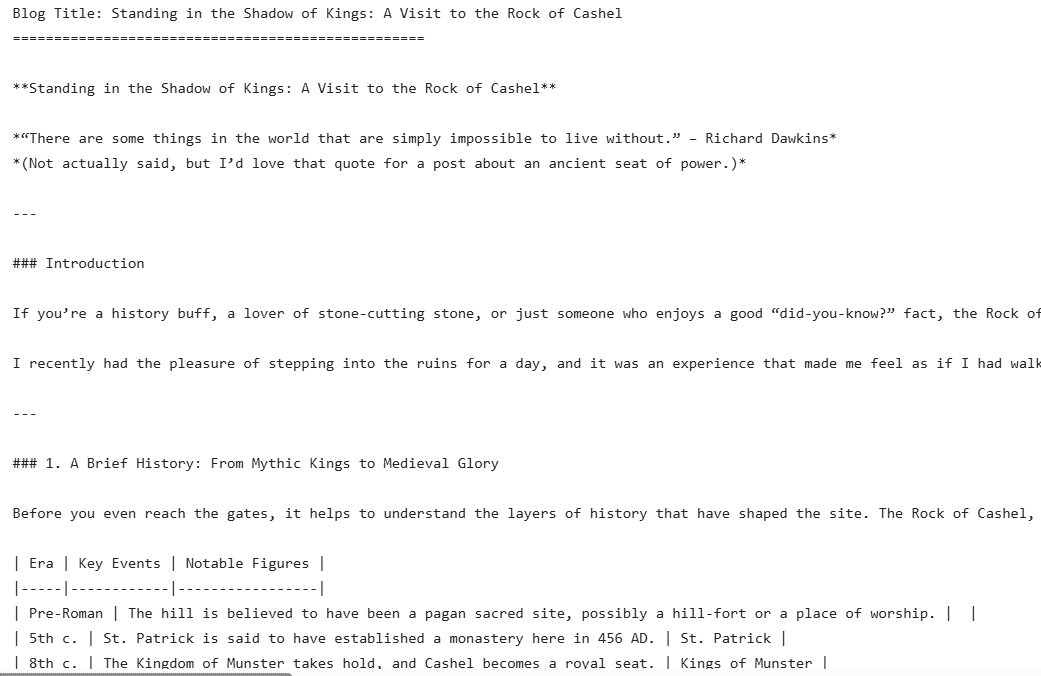
Instead of using the OpenAI SDK’s chat completions method, this example calls the Ollama REST API directly at the /api/generate endpoint with streaming enabled. The script reads a list of blog titles from a file, generates a roughly 2000-word post for each one, and saves the output to a separate text file.
The generate function constructs a prompt, posts it to Ollama, and prints each token as it arrives by iterating over the streamed response lines.
Each completed blog is then saved to a uniquely named file. The save function sanitizes the title into a safe filename and writes the content to disk.
The main loop reads titles from a text file, calls generate_blog for each one, and passes the result to save_blog. If any single title fails, the exception is caught and the loop continues to the next item.
Why This Pattern Fits GPT-OSS Well
Local inference with GPT-OSS is slower than a hosted cloud API, especially on a single consumer GPU. That speed tradeoff is irrelevant for batch jobs that run in the background. The key advantages here are:
No token costs, regardless of how many blogs you generate or how long each one is
No network dependency once the model is downloaded, so the job runs even without internet access
All generated content stays on your machine, which matters if the source material is proprietary
Content generation is one example of this pattern. The same approach applies to any workload where you have a queue of inputs and do not need results immediately: summarizing documents, classifying records, or generating reports from internal data. The multi-agent capabilities covered next take this further by letting GPT-OSS route tasks to specialized sub-agents automatically.
Tool Calling and Structured Outputs
Beyond simple chat completions, GPT-OSS supports function calling: you define a tool schema, and the model parses your prompt to decide which function to invoke and what arguments to pass. The pattern requires two separate API calls, and the weather function example shows exactly how that flow works.
Defining a Tool Schema
A tool is described as a JSON object with a name, a description, and a parameters block. The parameters block uses JSON Schema to declare what the function expects. GPT-OSS reads this schema and maps values from the user’s prompt onto the declared properties.
Step 1: Let the Model Identify the Tool Call
The first call sends the user message and the tools list to the model. Setting tool_choice to “auto” tells GPT-OSS to call whatever tool is appropriate. Do not set it to “none”, or the model will never invoke any tool. The response comes back with a tool_calls field rather than a plain text answer.
GPT-OSS parses the prompt, recognizes that “San Francisco” matches the location parameter, and returns a structured tool call. In this example, the get_current_weather function is hardcoded to return 72 degrees Fahrenheit for San Francisco.
Step 2: Execute the Function and Return the Result
Once you have the tool_calls from the first response, you execute the actual function locally and append the result back to the message history. A second API call then asks GPT-OSS to render that result in natural language.

The two-step pattern is the key distinction from a plain chat call. The first call identifies what to run; the second call translates the raw result into a human-readable response. This same pattern works for any tool you define, not just weather lookups. With tool calling in place, the next step is combining multiple tools and agents into a coordinated workflow.
Building Agents and Multi-Agent Systems
The same two-step tool calling pattern scales up to full agent workflows. Using the OpenAI Agents SDK, you can run single agents and multi-agent triage systems entirely on your local GPT-OSS instance. The key is swapping the default cloud model for an OpenAIChatCompletionsModel pointed at Ollama.
Configuring the Agents SDK for Local Inference
The Agents SDK uses tracing by default to record which agents were called and in what order. Because GPT-OSS runs offline, tracing is unavailable and must be explicitly disabled. You also need to construct an AsyncOpenAI client that points to your Ollama instance instead of the OpenAI cloud.
This model object is a drop-in replacement anywhere the SDK expects a model. You pass it directly to the Agent constructor, and the rest of the agent code remains unchanged from what you would write against the cloud API.
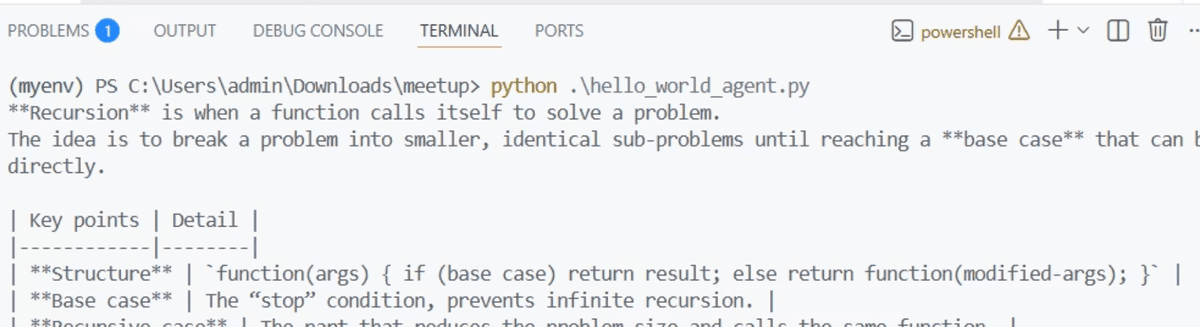
A Single-Agent Example
The simplest agent takes a name, a set of instructions, and the model object. Runner.run executes the agent against a user prompt and returns a result with a final_output field.
Multi-Agent Triage Pattern
A single agent handles one specialization well, but real workflows often need routing. The homework agent example demonstrates a triage pattern: one agent decides which specialist to hand off to, and two specialist agents handle their respective domains.
history_tutor_agent: handles historical questions, explains events and context
math_tutor_agent: handles math problems, shows reasoning step by step
triage_agent: receives every question and routes it to the correct specialist via the handoffs list
pythonCopy
When you send the question about the first US president, the triage agent recognizes it as a history question and hands off to history_tutor_agent. A math question routes to math_tutor_agent instead. All of this happens locally, with no tokens billed to a cloud account.
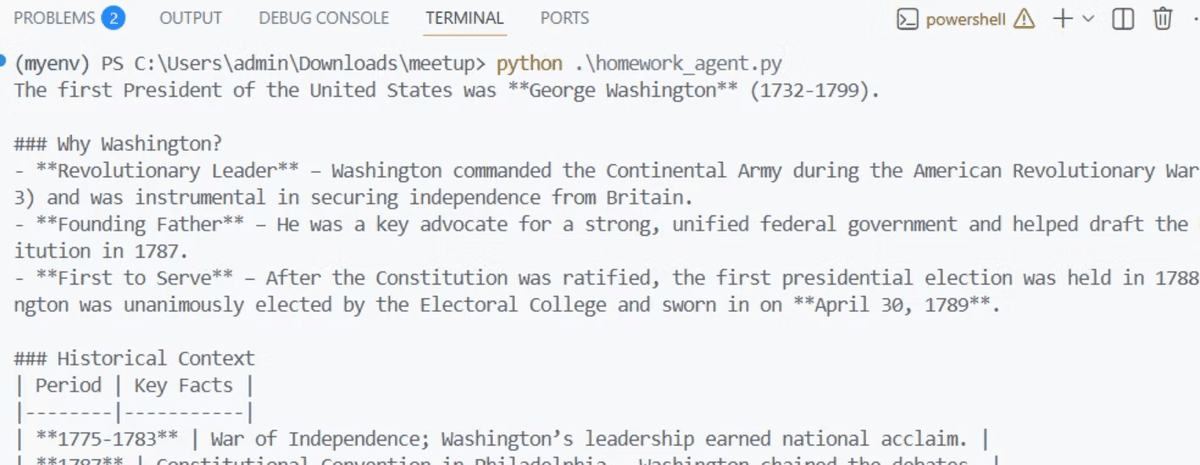
This cost-control benefit is one of the strongest arguments for running agents on GPT-OSS. Agent loops can call the model many times per task, and a runaway loop against a paid API can accumulate significant charges quickly. With a local model, that concern disappears entirely. The tradeoff is the absence of tracing: without it, debugging which agent was called requires adding your own print or logging statements to the code.
For remote deployments within a LAN, replace localhost in the base_url with the machine’s local IP address, exactly as shown in the homework_agent.py example which uses http://192.168.7.204:11434/v1. With agents running locally, the next question is which deployment architecture fits your environment and hardware budget.
Deployment Options: Local, Cloud, and Colab
With agents and API calls working, the next question is where to actually run GPT-OSS in your environment. There are three viable architectures, and the right choice depends on your privacy requirements, hardware budget, and whether you are experimenting or running in production.

Local GPU Machine
Running GPT-OSS locally gives you complete privacy. Your data stays on your machine, the model works offline, and you don’t need API tokens. This is ideal for HIPAA compliance, corporate secrets, or any situation where sensitive data cannot go to external services.
The hardware requirements are fixed by model size. You need a current Nvidia RTX GPU, specifically a 3, 4, or 5 series card, with enough VRAM to hold the model weights.
20B model: 16 GB GPU VRAM minimum
120B model: 80 GB GPU VRAM minimum
Cloud or VPC Deployment
You can run Ollama and GPT-OSS on a cloud instance or within a private VPC. This removes the need to purchase your own GPU hardware and makes the model accessible to a team over the network. The tradeoff is that the air-gap guarantee disappears: your data is now on infrastructure managed by a third party, even if it stays within a private network boundary.
Google Colab
Google Colab is the most accessible entry point if you do not own an Nvidia GPU. Colab provides a Linux environment with a free-tier GPU, which means you can skip dependency installation headaches and avoid the cost of dedicated hardware. It is particularly well-suited for fine-tuning experiments, which are covered in the next section.
Fine-Tuning GPT-OSS with LoRA and Unsloth
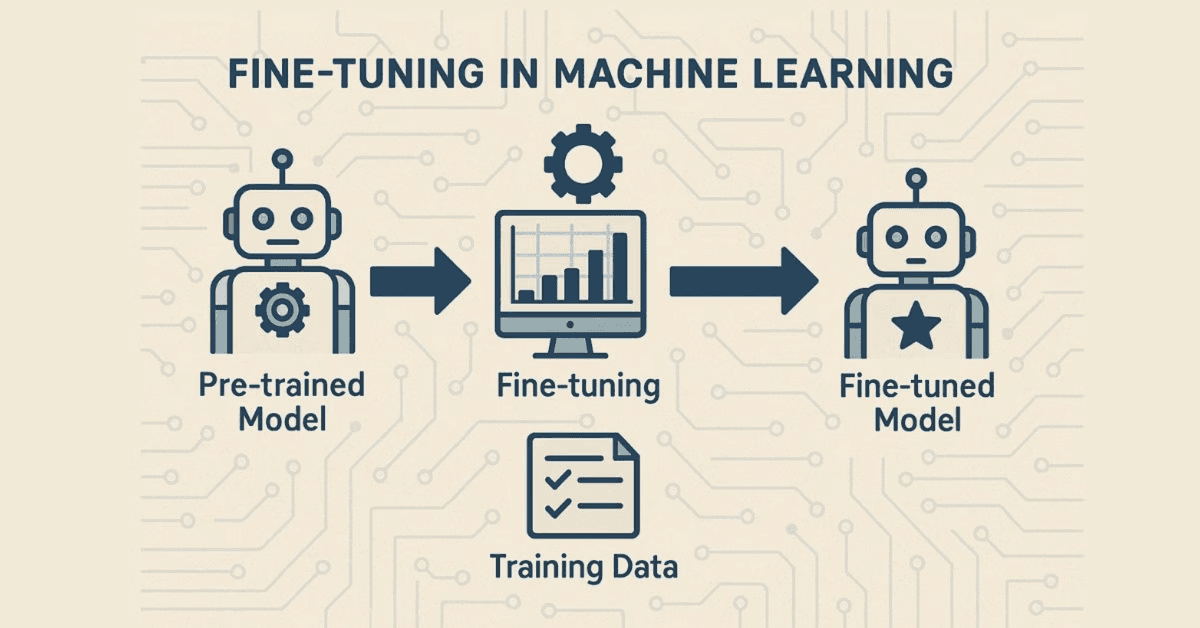
Once you have GPT-OSS running locally, you can go a step further: adapting the model’s behavior for a specific domain without retraining it from scratch. Full retraining is impractical for most teams. Training a model the size of GPT-OSS from scratch would cost an enormous amount of compute time and money. Fine-tuning with LoRA is the practical alternative.
How LoRA Works
LoRA, or Low-Rank Adaptation, works by freezing the model’s original weights entirely. Instead of updating every parameter, it inserts small trainable low-rank matrices into selected layers of the model. You train only those inserted matrices, which represent a tiny fraction of the total parameter count.
This approach lets you teach GPT-OSS new response patterns, domain knowledge, or personas without touching the underlying model. Unsloth is a library that accelerates this process significantly, which is why it appears in most community fine-tuning examples for GPT-OSS.
Setting Up the Environment
Google Colab is the recommended starting point for fine-tuning, as covered in the deployment section. It provides a Linux environment with GPU access and avoids the dependency conflicts that are common on Windows. Install the following packages before proceeding:
transformers
bitsandbytes
trl
unsloth
Loading the Model and Configuring the LoRA Adapter
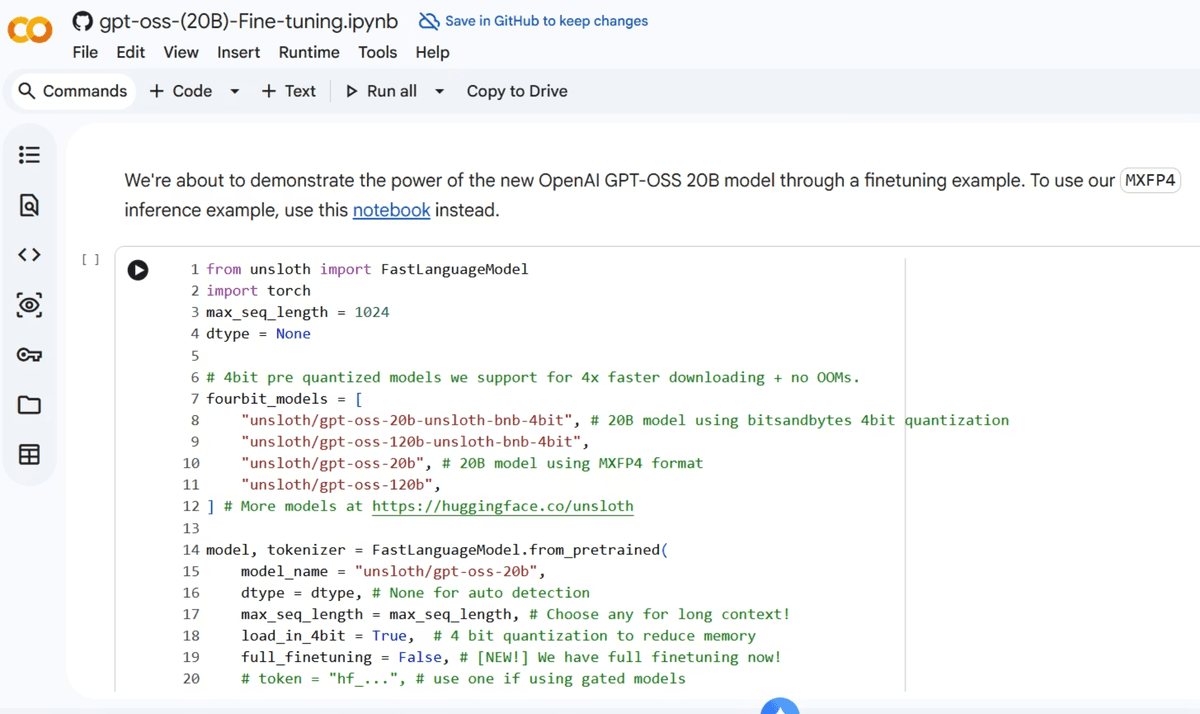
Load the Unsloth-optimized version of GPT-OSS 20B, then attach a LoRA adapter to it. The adapter targets a small fraction of the model’s parameters, keeping training time and memory usage manageable.
We now add LoRA adapters for parameter efficient finetuning. This allows you to focus on training 1% of all parameters:
Choosing a Dataset and Training
Training datasets come from Hugging Face. You can use a public multilingual thinking dataset to teach GPT-OSS to reason across languages, or search Hugging Face for medical, legal, or domain-specific datasets that match your use case. Hugging Face functions as a repository of both models and datasets, similar to how GitHub hosts code.
Training uses SFTTrainer from the TRL library. Critically, you train on assistant responses only. The system prompt and user message are passed as context, but the loss is computed only on what the assistant outputs. This is how the model learns what a correct answer looks like for your domain.
Run the trainer, then monitor the training loss to confirm it decreases over epochs. Once training is complete, save the model. You can then load it into Ollama or use it directly from Python.
And then finally,
Community Fine-Tuned Variants
A large number of community fine-tuned GPT-OSS models already exist on Hugging Face and Ollama. Searching for GPT-OSS on either platform surfaces over a hundred variants trained for different purposes.
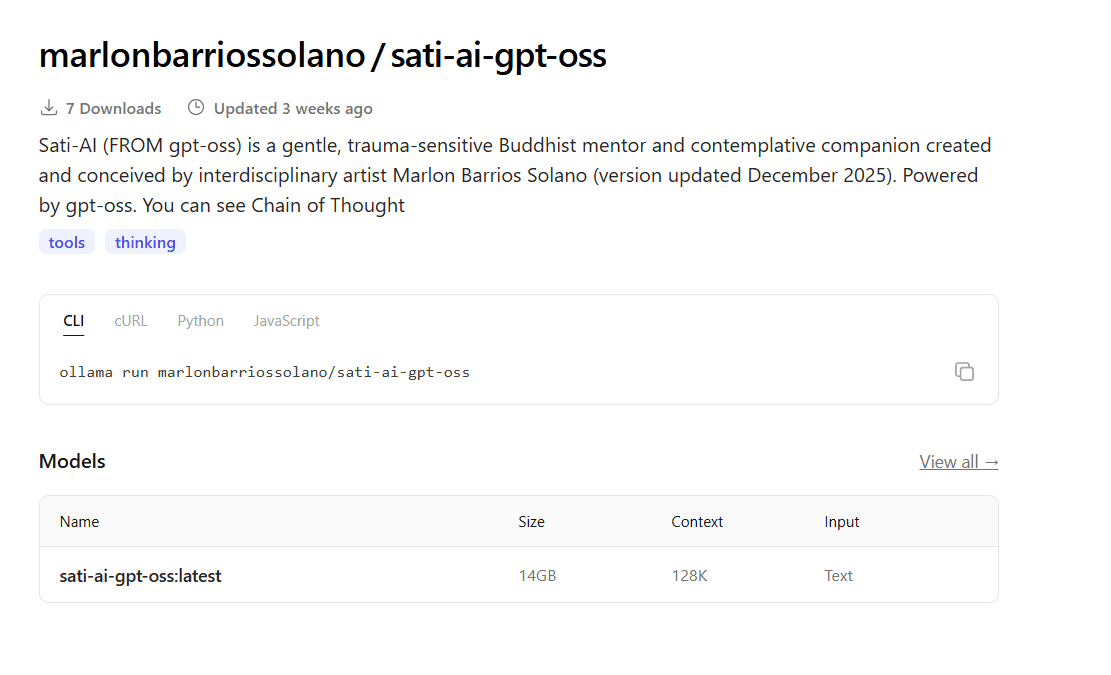
Some notable categories of community variants include:
Medical: trained on clinical and health data to give more detailed medical responses rather than generic safety disclaimers
Multilingual: trained to reason and respond across multiple languages
Persona-based: such as Sati-AI, a Buddhist mentor model available on Ollama at ollama.com/marlonbarriossolano/sati-ai-gpt-oss
Uncensored: variants with safety guardrails removed, which are common on both Hugging Face and Ollama
To run any community variant through Ollama, use the same pattern as the base model. Replace the model name with the variant’s identifier:
Fine-tuning is where open weights create the most leverage. The base GPT-OSS model is a strong general-purpose foundation. By layering LoRA training on top of it, you can produce a specialized model that behaves exactly as your use case requires, at no ongoing inference cost.
Other Open-Weight Models to Know
GPT-OSS does not exist in isolation. It is part of a broader ecosystem of open-weight models, and Ollama supports many of them using the same commands and API patterns you have already used. If a particular use case calls for a different model, switching is straightforward.
Hugging Face is the central hub for discovering, downloading, and sharing these models. It functions much like GitHub does for code: models, datasets, and fine-tuned variants are all hosted and searchable in one place. The community fine-tuned GPT-OSS variants covered in the previous section are just a small fraction of what is available there.
The main open-weight models worth knowing about, all available through Hugging Face and most through Ollama, include:
Deepseek: a capable open-weight model with active development
Meta LLaMA 3: one of the most widely used open models from Meta
Qwen: another strong open-weight option available on Ollama
Mixtral: a mixture-of-experts model from Mistral AI
TinyLlama: a small model suited for resource-constrained or edge devices
GPT-2: the historical predecessor to GPT-OSS, and the model that seeded much of the open-weight ecosystem; most of the models on Hugging Face trace their lineage back to it
Conclusion
GPT-OSS earns its place when privacy, cost, or offline operation are non-negotiable: private RAG over sensitive corporate documents, overnight batch processing, multi-agent workloads that could rack up unexpected API costs, and fine-tuning for specialized domains like medical or multilingual applications. If your application demands the fastest possible inference, or your team does not have access to a GPU with at least 16 GB of VRAM, a hosted API is still the practical choice. We can’t wait to see what you are able to make with your local custom models!
Additional Resources
Resources
GitHub Repository: https://github.com/godfreynolan/gpt-oss
If you had fun with this tutorial, be sure to join the OpenAI Application Explorers Meetup Group to learn more about awesome apps you can build with AI.