The days of waiting for exclusive access to cutting-edge AI video generation are over. OpenAI’s Sora API provides developers with direct programmatic access to create stunning, high-quality videos without needing a special invite code. If you have an OpenAI API key, you can start generating videos today. This tutorial walks you through everything you need to know, from your first API call to building automated video workflows that chain multiple scenes together.
Introduction to Sora
The use cases for Sora extend across multiple domains. Social media content creation becomes streamlined when you can generate eye-catching videos programmatically. Marketing teams can produce commercial footage without traditional production costs. Designers can create video prototypes to communicate content to clients before committing to professional production, similar to how image generation helps bridge the gap between creative vision and final execution.
Storyboarding represents perhaps the most exciting application. Traditional storyboarding requires pencil artists to translate scripts into visual sequences. Sora can accelerate this process dramatically, generating rough video sequences that convey timing, composition, and mood. Educational content creators can produce explanatory videos where visual demonstrations convey concepts more effectively than text alone.
Basic API Call
Getting started with Sora requires only a few lines of Python code. The structure mirrors other OpenAI API calls, making it familiar territory for developers who have worked with GPT models.
fromopenaiimportOpenAIimportconfigimporttimeopenai = OpenAI(api_key=config.OPENAI_API_KEY)video = openai.videos.create(model="sora-2-pro",prompt="A video of a cool cat on a motorcycle in the night",)
fromopenaiimportOpenAIimportconfigimporttimeopenai = OpenAI(api_key=config.OPENAI_API_KEY)video = openai.videos.create(model="sora-2-pro",prompt="A video of a cool cat on a motorcycle in the night",)
fromopenaiimportOpenAIimportconfigimporttimeopenai = OpenAI(api_key=config.OPENAI_API_KEY)video = openai.videos.create(model="sora-2-pro",prompt="A video of a cool cat on a motorcycle in the night",)
This code imports the OpenAI library and initializes the client with your API key stored in a config file. The openai.videos.create call replaces what you might recognize as the completions endpoint for text generation. Instead of calling a GPT model, you specify sora-2-pro as the model parameter.
print("Video generation started:",video)print("Video ID:",video.id)time.sleep(200)# This may need to be increasedcontent = openai.videos.download_content(video.id,variant="video")content.write_to_file("video.mp4")print("Wrote video.mp4")
print("Video generation started:",video)print("Video ID:",video.id)time.sleep(200)# This may need to be increasedcontent = openai.videos.download_content(video.id,variant="video")content.write_to_file("video.mp4")print("Wrote video.mp4")
print("Video generation started:",video)print("Video ID:",video.id)time.sleep(200)# This may need to be increasedcontent = openai.videos.download_content(video.id,variant="video")content.write_to_file("video.mp4")print("Wrote video.mp4")
The video ID is crucial because generation takes time—typically a minute or two, depending on the duration. The time.sleep(200) approach represents a simplified waiting mechanism. Once complete, you download the content using the video ID and write it to an MP4 file.
To obtain your API key, navigate to the OpenAI playground interface, click on settings, go to API keys, and generate a new secret API key. This key enables billing for your video generation requests.
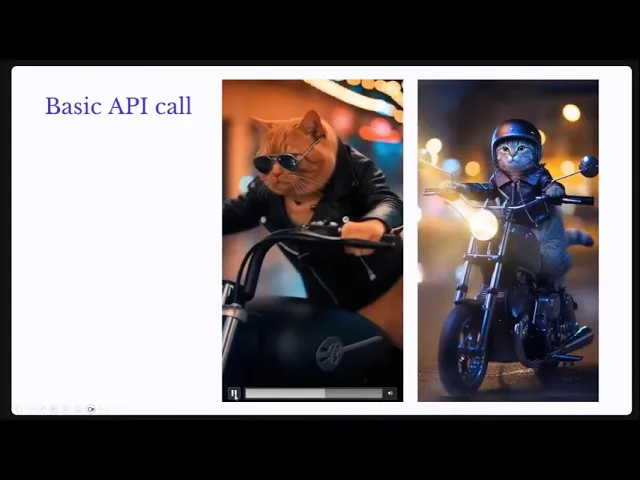
In this example output, you can see the difference between Sora 2 (cat on the left) and Sora 2 Pro (cat on the right). NOTE: Normally, the output contains sound.
Basic API Call with Progress Bar
The simple sleep approach works but lacks elegance. A more robust implementation polls the API to check the generation status.
This approach continuously checks the video status, updating a progress bar in the terminal. The polling interval of two seconds balances responsiveness against unnecessary API calls. When status changes to “completed,” the loop exits and you can download immediately rather than waiting an arbitrary duration.
Parameters
Sora provides several parameters to customize your video output. The model parameter accepts either sora-2 standard quality or sora-2-pro for higher quality output. The visual difference is notable as seen in the example above Sora 2 Pro produces significantly more realistic results.
Size options vary by model. Sora 2 supports 720x1280 and 1280x720 pixels, offering portrait and landscape orientations. Sora 2 Pro expands this with additional options: 1024x1792 and 1792x1024 pixels.
video = openai.videos.create(model="sora-2",prompt="A video of a cool cat on a motorcycle in the night",seconds="8",size="1280x720",)
video = openai.videos.create(model="sora-2",prompt="A video of a cool cat on a motorcycle in the night",seconds="8",size="1280x720",)
video = openai.videos.create(model="sora-2",prompt="A video of a cool cat on a motorcycle in the night",seconds="8",size="1280x720",)
Duration defaults to four seconds if not specified, but you can request 8 or 12 seconds. Longer videos increase cost proportionally (expect roughly one dollar per video at the time of writing), with 12-second generations exceeding that amount. This makes Sora one of the more expensive models currently, though prices will likely decrease as the technology matures.
Input Reference
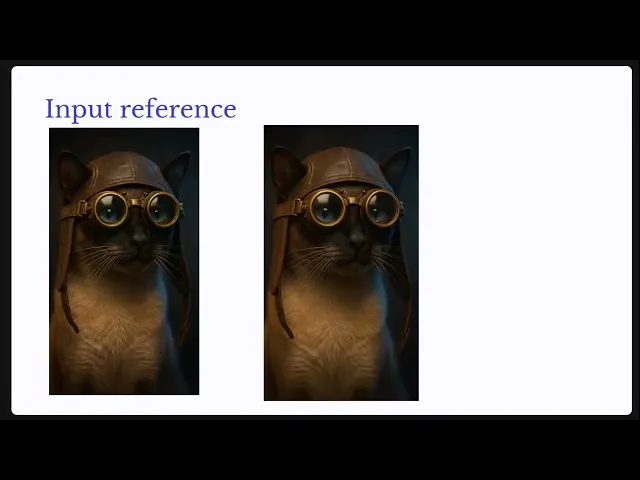
The input reference parameter enables video generation based on an existing image. This feature provides creative control by establishing visual consistency from the start.
response = openai.responses.create(model="gpt-5",input="A portrait photo of a siamese cat wearing steampunk goggles and a leather aviator hat, high detail, dramatic lighting",tools=[{"type": "image_generation","size": "1024x1536","quality": "high",}],)
response = openai.responses.create(model="gpt-5",input="A portrait photo of a siamese cat wearing steampunk goggles and a leather aviator hat, high detail, dramatic lighting",tools=[{"type": "image_generation","size": "1024x1536","quality": "high",}],)
response = openai.responses.create(model="gpt-5",input="A portrait photo of a siamese cat wearing steampunk goggles and a leather aviator hat, high detail, dramatic lighting",tools=[{"type": "image_generation","size": "1024x1536","quality": "high",}],)
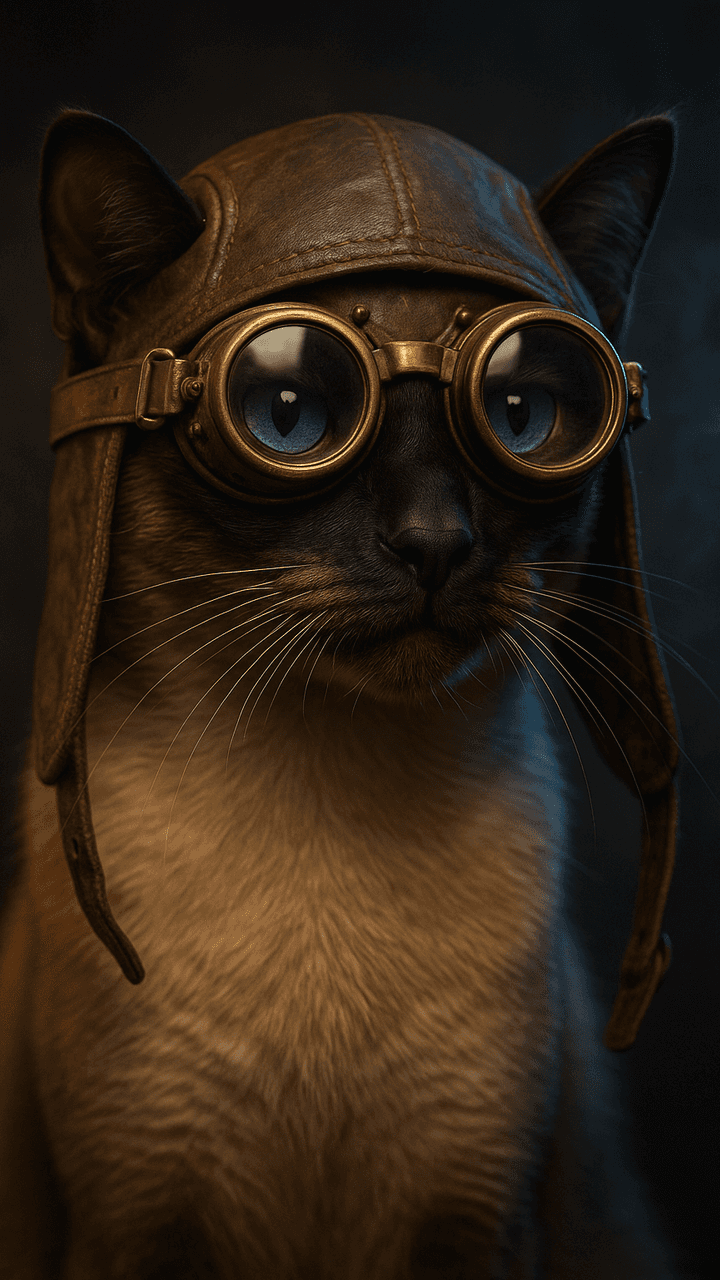
First, generate a reference image using GPT-5’s image generation capability. This call produces a high-quality portrait that establishes the visual style and subject matter.
ifimage_data:
image_base64 = image_data[0]withopen("siamese.png","wb")asf:
f.write(base64.b64decode(image_base64))resize_image("siamese.png")print("Saved and resized image to 720x1280")video = openai.videos.create(model="sora-2",prompt="The cat turns around and then walks out of the frame.",input_reference=Path(f"./siamese.png"),size="720x1280",seconds=4,)
ifimage_data:
image_base64 = image_data[0]withopen("siamese.png","wb")asf:
f.write(base64.b64decode(image_base64))resize_image("siamese.png")print("Saved and resized image to 720x1280")video = openai.videos.create(model="sora-2",prompt="The cat turns around and then walks out of the frame.",input_reference=Path(f"./siamese.png"),size="720x1280",seconds=4,)
ifimage_data:
image_base64 = image_data[0]withopen("siamese.png","wb")asf:
f.write(base64.b64decode(image_base64))resize_image("siamese.png")print("Saved and resized image to 720x1280")video = openai.videos.create(model="sora-2",prompt="The cat turns around and then walks out of the frame.",input_reference=Path(f"./siamese.png"),size="720x1280",seconds=4,)
A critical requirement: the input image must exactly match the video size you specify. The resize function adjusts your generated image to the target dimensions before passing it to Sora. This approach may prove essential for achieving consistency across multiple video segments.
Prompting
Prompting for video generation requires significantly more detail than text queries to ChatGPT. While modern language models can infer intent from minimal input, Sora needs explicit guidance about visual elements, camera work, and style.
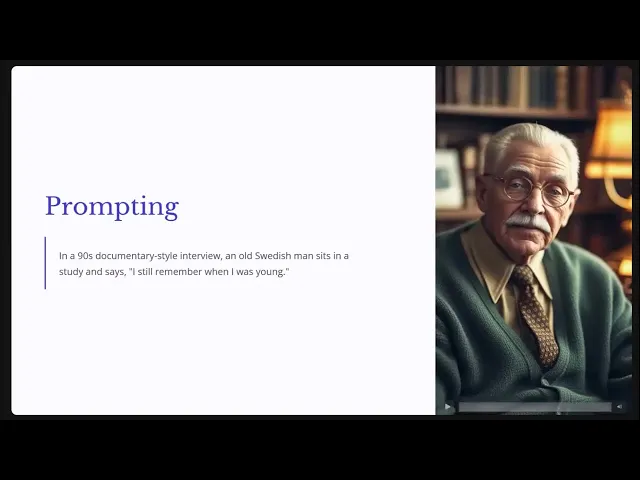
OpenAI’s cookbook recommends describing several key elements: the type of video, camera specifications, lighting conditions, the subject, their actions, and the setting. A minimal prompt might read: “In a 90s documentary style interview, an old Swedish man sits in a study and says, I still remember when I was young.”
This prompt establishes the documentary style, describes the subject and setting, and provides specific dialogue. Sora will replicate this fairly consistently across regenerations.
If you have a favorite movie or film in mind, check out ShotOnWhat?, which is a fantastic resource for filmmakers to research the equipment used to make some of cinema and TV's greatest works.
Cookbook Prompts
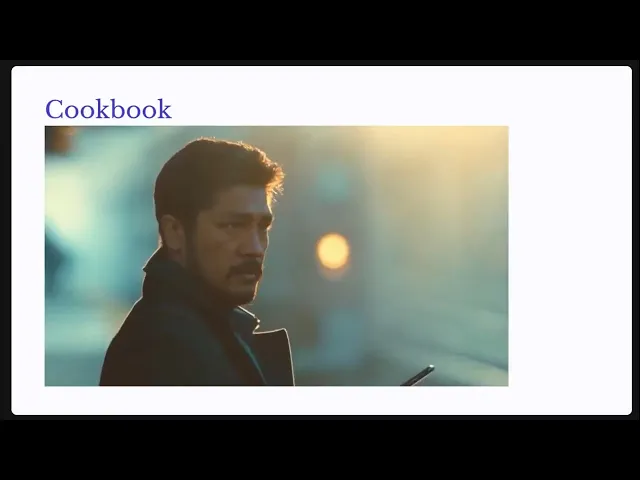
For professional-quality output, the cookbook provides extensively detailed prompt templates spanning technical camera specifications, lighting setups, and scene composition.
These comprehensive prompts specify elements like “180 degree shutter, digital capture emulating 65 millimeter photochemical contrast, fine grain, subtle halation on speculars” alongside detailed subject descriptions and lighting arrangements. While intimidating for non-cinematographers, this level of detail produces remarkably polished results.
Here’s an example from OpenAI that has a great deal of detail:
Format & Look
Duration 4s; 180° shutter; digital capture emulating 65 mm photochemical contrast; fine grain; subtle halation on specular

Lenses & Filtration
32 mm / 50 mm spherical primes; Black Pro-Mist 1/4; slight CPL rotation to manage glass reflections on train windows.

Grade / Palette
Highlights: clean morning sunlight with amber lift.
Mids: balanced neutrals with slight teal cast in shadows.
Blacks: soft, neutral with mild lift for haze retention.

Lighting & Atmosphere
Natural sunlight from camera left, low angle (07:30 AM).
Bounce: 4×4 ultrabounce silver from trackside.
Negative fill from opposite wall.
Practical: sodium platform lights on dim fade.
Atmos: gentle mist; train exhaust drift through light beam.

Location & Framing
Urban commuter platform, dawn.
Foreground: yellow safety line, coffee cup on bench.
Midground: waiting passengers silhouetted in haze.
Background: arriving train braking to a stop.
Avoid signage or corporate branding.

Wardrobe / Props / Extras
Main subject: mid-30s traveler, navy coat, backpack slung on one shoulder, holding phone loosely at side.
Extras: commuters in
Format & Look
Duration 4s; 180° shutter; digital capture emulating 65 mm photochemical contrast; fine grain; subtle halation on specular

Lenses & Filtration
32 mm / 50 mm spherical primes; Black Pro-Mist 1/4; slight CPL rotation to manage glass reflections on train windows.

Grade / Palette
Highlights: clean morning sunlight with amber lift.
Mids: balanced neutrals with slight teal cast in shadows.
Blacks: soft, neutral with mild lift for haze retention.

Lighting & Atmosphere
Natural sunlight from camera left, low angle (07:30 AM).
Bounce: 4×4 ultrabounce silver from trackside.
Negative fill from opposite wall.
Practical: sodium platform lights on dim fade.
Atmos: gentle mist; train exhaust drift through light beam.

Location & Framing
Urban commuter platform, dawn.
Foreground: yellow safety line, coffee cup on bench.
Midground: waiting passengers silhouetted in haze.
Background: arriving train braking to a stop.
Avoid signage or corporate branding.

Wardrobe / Props / Extras
Main subject: mid-30s traveler, navy coat, backpack slung on one shoulder, holding phone loosely at side.
Extras: commuters in
Format & Look
Duration 4s; 180° shutter; digital capture emulating 65 mm photochemical contrast; fine grain; subtle halation on specular

Lenses & Filtration
32 mm / 50 mm spherical primes; Black Pro-Mist 1/4; slight CPL rotation to manage glass reflections on train windows.

Grade / Palette
Highlights: clean morning sunlight with amber lift.
Mids: balanced neutrals with slight teal cast in shadows.
Blacks: soft, neutral with mild lift for haze retention.

Lighting & Atmosphere
Natural sunlight from camera left, low angle (07:30 AM).
Bounce: 4×4 ultrabounce silver from trackside.
Negative fill from opposite wall.
Practical: sodium platform lights on dim fade.
Atmos: gentle mist; train exhaust drift through light beam.

Location & Framing
Urban commuter platform, dawn.
Foreground: yellow safety line, coffee cup on bench.
Midground: waiting passengers silhouetted in haze.
Background: arriving train braking to a stop.
Avoid signage or corporate branding.

Wardrobe / Props / Extras
Main subject: mid-30s traveler, navy coat, backpack slung on one shoulder, holding phone loosely at side.
Extras: commuters in
That’s the level of detail you may need to get incredibly realistic outputs like this:
Custom GPT for Prompts
The custom GPT ecosystem provides a practical solution for generating detailed prompts without cinematography expertise. Navigate to ChatGPT, explore custom GPTs, and search for Sora-specific assistants.
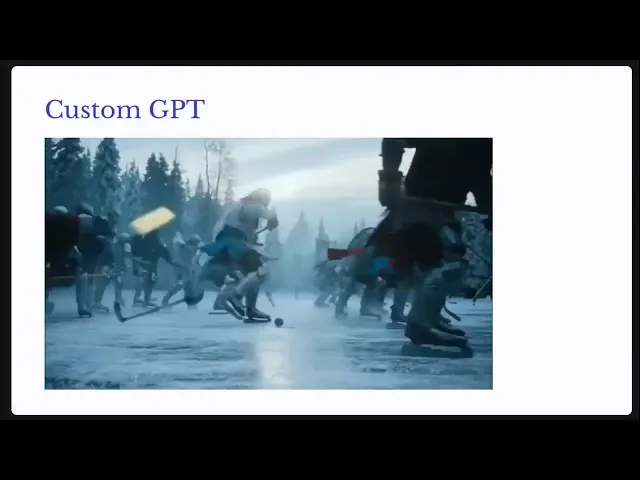
These specialized GPTs take simple concepts and generate comprehensive prompts. Request “create a prompt for medieval knights playing ice hockey” and receive multiple shot descriptions with technical specifications. The generated prompts include details you wouldn’t think to specify but dramatically improve output quality.
We were able to get it to give us this sophisticated prompt with a little bit of prodding:
icehockey_prompt= """**Title:** "Steel Blades on Ice – Knights of the Frozen Arena"**OUTPUT SPECS:**Duration 8.0s with per-shot split 2.5+2.0+1.5; Aspect 2.39:1; Resolution 4K; FPS 24; Shutter 180°; Motion blur on; Colour space Rec.709 gamma 2.4; White balance 5600K.**GLOBAL RULES:**Maintain identity and armour per knight. No time jumps. Physics: plausible medieval gear collisions, ice friction, and skate inertia. Camera stabilisation steady throughout.---**SHOT 1 – Wide Establishing (Tracking Pan)**Duration 3s.Setting and purpose: A medieval frozen lake, late afternoon, used as an improvised ice hockey arena; introduces the surreal yet grounded premise.Subject and action: Two teams of armoured knights skating toward a puck carved from black obsidian.Camera: height 1.6m, distance 10m, lateral tracking left at 1.2m/s, lens 35mm on full-frame sensor, spherical.Framing and DoF: rule-of-thirds, deep focus, focus target central cluster of knights.Lighting: Overcast daylight with directional backlight from low winter sun; soft fill from snow reflection.Colour: muted steel, crimson, frost blue, burnt wood, cold grey.Atmospherics: drifting powder snow, mild breath vapor, distant torch smoke.Depth cue: armoured figures in foreground skating past trees and banners in background.Transition out: whip pan right.---**SHOT 2 – Medium Action Insert (Dolly Push-In)**Duration 3s.Setting and purpose: Highlights central knight in combat with another, both colliding mid-play.Subject and action: Main knight body-checks a rival, sparks fly as pauldrons clash; puck skitters forward.Camera: height 1.4m, distance 4m, dolly push-in at 0.6m/s, lens 50mm.Framing and DoF: symmetry, shallow DoF, focus target main knight's helm and eyeslit.Lighting: stronger backlight glinting off helms; no practicals.Colour: steel, dark crimson, jet black, icy white.
icehockey_prompt= """**Title:** "Steel Blades on Ice – Knights of the Frozen Arena"**OUTPUT SPECS:**Duration 8.0s with per-shot split 2.5+2.0+1.5; Aspect 2.39:1; Resolution 4K; FPS 24; Shutter 180°; Motion blur on; Colour space Rec.709 gamma 2.4; White balance 5600K.**GLOBAL RULES:**Maintain identity and armour per knight. No time jumps. Physics: plausible medieval gear collisions, ice friction, and skate inertia. Camera stabilisation steady throughout.---**SHOT 1 – Wide Establishing (Tracking Pan)**Duration 3s.Setting and purpose: A medieval frozen lake, late afternoon, used as an improvised ice hockey arena; introduces the surreal yet grounded premise.Subject and action: Two teams of armoured knights skating toward a puck carved from black obsidian.Camera: height 1.6m, distance 10m, lateral tracking left at 1.2m/s, lens 35mm on full-frame sensor, spherical.Framing and DoF: rule-of-thirds, deep focus, focus target central cluster of knights.Lighting: Overcast daylight with directional backlight from low winter sun; soft fill from snow reflection.Colour: muted steel, crimson, frost blue, burnt wood, cold grey.Atmospherics: drifting powder snow, mild breath vapor, distant torch smoke.Depth cue: armoured figures in foreground skating past trees and banners in background.Transition out: whip pan right.---**SHOT 2 – Medium Action Insert (Dolly Push-In)**Duration 3s.Setting and purpose: Highlights central knight in combat with another, both colliding mid-play.Subject and action: Main knight body-checks a rival, sparks fly as pauldrons clash; puck skitters forward.Camera: height 1.4m, distance 4m, dolly push-in at 0.6m/s, lens 50mm.Framing and DoF: symmetry, shallow DoF, focus target main knight's helm and eyeslit.Lighting: stronger backlight glinting off helms; no practicals.Colour: steel, dark crimson, jet black, icy white.
icehockey_prompt= """**Title:** "Steel Blades on Ice – Knights of the Frozen Arena"**OUTPUT SPECS:**Duration 8.0s with per-shot split 2.5+2.0+1.5; Aspect 2.39:1; Resolution 4K; FPS 24; Shutter 180°; Motion blur on; Colour space Rec.709 gamma 2.4; White balance 5600K.**GLOBAL RULES:**Maintain identity and armour per knight. No time jumps. Physics: plausible medieval gear collisions, ice friction, and skate inertia. Camera stabilisation steady throughout.---**SHOT 1 – Wide Establishing (Tracking Pan)**Duration 3s.Setting and purpose: A medieval frozen lake, late afternoon, used as an improvised ice hockey arena; introduces the surreal yet grounded premise.Subject and action: Two teams of armoured knights skating toward a puck carved from black obsidian.Camera: height 1.6m, distance 10m, lateral tracking left at 1.2m/s, lens 35mm on full-frame sensor, spherical.Framing and DoF: rule-of-thirds, deep focus, focus target central cluster of knights.Lighting: Overcast daylight with directional backlight from low winter sun; soft fill from snow reflection.Colour: muted steel, crimson, frost blue, burnt wood, cold grey.Atmospherics: drifting powder snow, mild breath vapor, distant torch smoke.Depth cue: armoured figures in foreground skating past trees and banners in background.Transition out: whip pan right.---**SHOT 2 – Medium Action Insert (Dolly Push-In)**Duration 3s.Setting and purpose: Highlights central knight in combat with another, both colliding mid-play.Subject and action: Main knight body-checks a rival, sparks fly as pauldrons clash; puck skitters forward.Camera: height 1.4m, distance 4m, dolly push-in at 0.6m/s, lens 50mm.Framing and DoF: symmetry, shallow DoF, focus target main knight's helm and eyeslit.Lighting: stronger backlight glinting off helms; no practicals.Colour: steel, dark crimson, jet black, icy white.
Now we can take that prompt and put it into our basic call, and voila:
Remix
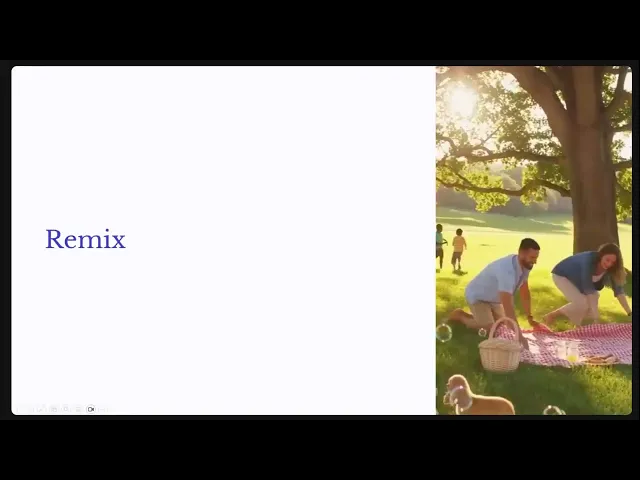
The remix function enables creating related videos that maintain continuity with previous generations.
openai = OpenAI(api_key=config.OPENAI_API_KEY)basic_prompt = "A cheerful family picnic in a sunny park. Parents set up a blanket under a big oak tree while kids fly kites and toss a frisbee. The camera pans over sandwiches, lemonade, and a puppy chasing bubbles. Gentle acoustic music plays as everyone laughs and enjoys the afternoon."remix_prompt = "The scene shifts to a close-up of the family dog catching a frisbee mid-air, then zooms out to show the whole family playing together, with the sun setting in the background, casting a warm golden glow over the park."# create basic videovideo = openai.videos.create(model="sora-2-pro",prompt=basic_prompt,)time.sleep(400)# This may need to be increased# create remixed videoremix_video = openai.videos.remix(video_id=video.id,prompt=remix_prompt,)
openai = OpenAI(api_key=config.OPENAI_API_KEY)basic_prompt = "A cheerful family picnic in a sunny park. Parents set up a blanket under a big oak tree while kids fly kites and toss a frisbee. The camera pans over sandwiches, lemonade, and a puppy chasing bubbles. Gentle acoustic music plays as everyone laughs and enjoys the afternoon."remix_prompt = "The scene shifts to a close-up of the family dog catching a frisbee mid-air, then zooms out to show the whole family playing together, with the sun setting in the background, casting a warm golden glow over the park."# create basic videovideo = openai.videos.create(model="sora-2-pro",prompt=basic_prompt,)time.sleep(400)# This may need to be increased# create remixed videoremix_video = openai.videos.remix(video_id=video.id,prompt=remix_prompt,)
openai = OpenAI(api_key=config.OPENAI_API_KEY)basic_prompt = "A cheerful family picnic in a sunny park. Parents set up a blanket under a big oak tree while kids fly kites and toss a frisbee. The camera pans over sandwiches, lemonade, and a puppy chasing bubbles. Gentle acoustic music plays as everyone laughs and enjoys the afternoon."remix_prompt = "The scene shifts to a close-up of the family dog catching a frisbee mid-air, then zooms out to show the whole family playing together, with the sun setting in the background, casting a warm golden glow over the park."# create basic videovideo = openai.videos.create(model="sora-2-pro",prompt=basic_prompt,)time.sleep(400)# This may need to be increased# create remixed videoremix_video = openai.videos.remix(video_id=video.id,prompt=remix_prompt,)
The remix call takes the original video ID and a new prompt describing how the scene should evolve. This creates continuity between clips, though maintaining perfect consistency remains challenging. You may notice subtle differences like a puppy in the first video becoming a more mature dog in the remix.
Sequencing Videos
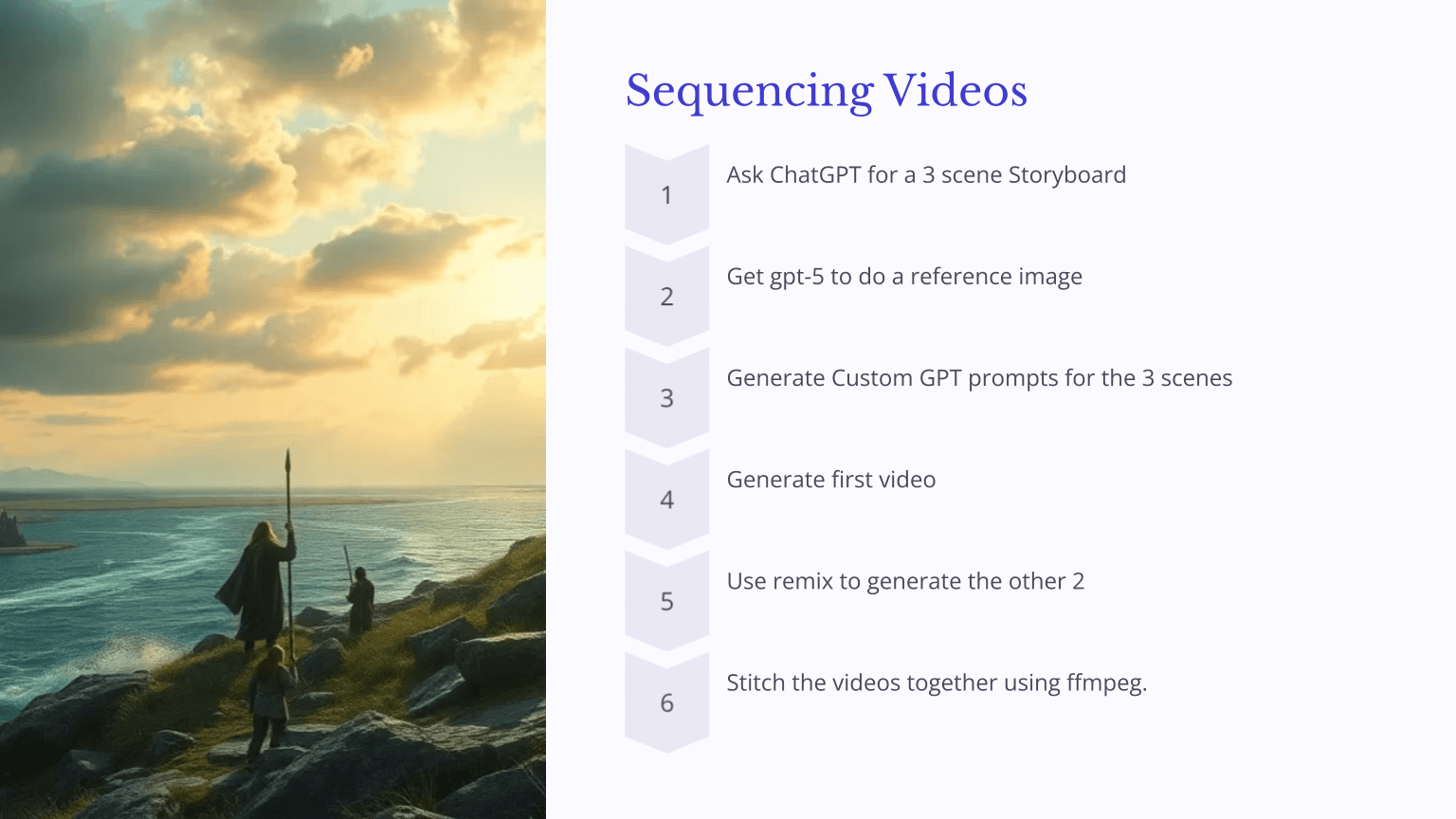
Building multi-scene storyboards requires combining techniques: detailed prompts, remix functionality, and video stitching tools.
The workflow involves generating a three-scene storyboard from ChatGPT, creating detailed prompts for each scene using a custom GPT, generating the first video, remixing for subsequent scenes, and combining with ffmpeg.
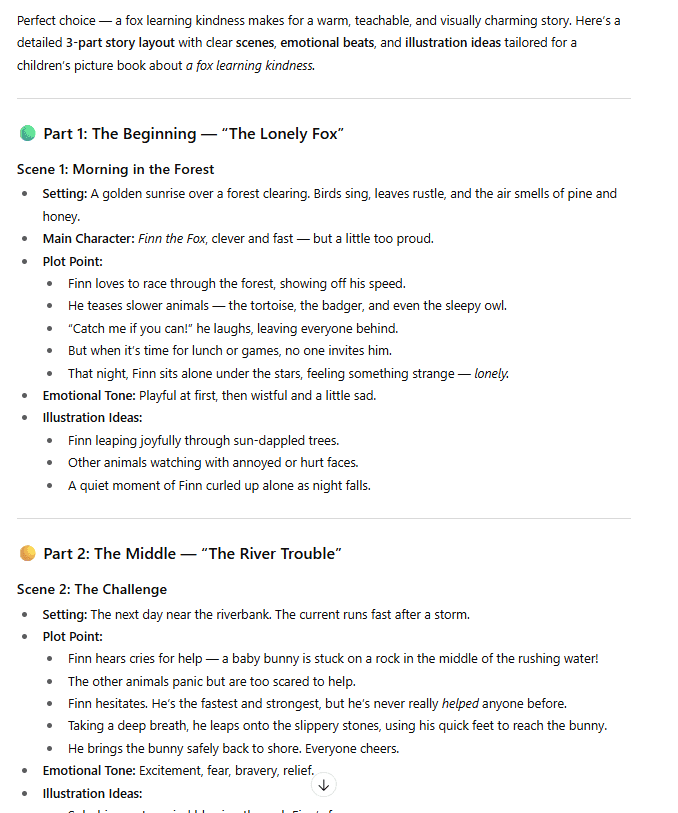
I asked ChatGPT to make me a plan to help me with the storyboard process. I chose a fun children’s tale about a fox.
With that in the hand, the process is much like before, generating the videos in a chain.
video1 = openai.videos.create(model="sora-2-pro",prompt=scene1_prompt,size="1280x720",seconds="12",)video1 = wait_for_video_completion(video1)download_and_save_video(video1,"storyboard1.mp4")video2 = openai.videos.remix(video_id=video1.id,prompt=scene2_prompt,)video2 = wait_for_video_completion(video2)download_and_save_video(video2,"storyboard2.mp4")# always point at the first video when remixingvideo3 = openai.videos.remix(video_id=video1.id,prompt=scene3_prompt,)video3 = wait_for_video_completion(video3)download_and_save_video(video3,"storyboard3.mp4")
video1 = openai.videos.create(model="sora-2-pro",prompt=scene1_prompt,size="1280x720",seconds="12",)video1 = wait_for_video_completion(video1)download_and_save_video(video1,"storyboard1.mp4")video2 = openai.videos.remix(video_id=video1.id,prompt=scene2_prompt,)video2 = wait_for_video_completion(video2)download_and_save_video(video2,"storyboard2.mp4")# always point at the first video when remixingvideo3 = openai.videos.remix(video_id=video1.id,prompt=scene3_prompt,)video3 = wait_for_video_completion(video3)download_and_save_video(video3,"storyboard3.mp4")
video1 = openai.videos.create(model="sora-2-pro",prompt=scene1_prompt,size="1280x720",seconds="12",)video1 = wait_for_video_completion(video1)download_and_save_video(video1,"storyboard1.mp4")video2 = openai.videos.remix(video_id=video1.id,prompt=scene2_prompt,)video2 = wait_for_video_completion(video2)download_and_save_video(video2,"storyboard2.mp4")# always point at the first video when remixingvideo3 = openai.videos.remix(video_id=video1.id,prompt=scene3_prompt,)video3 = wait_for_video_completion(video3)download_and_save_video(video3,"storyboard3.mp4")
For optimal consistency, always reference the first video when creating remixes for subsequent scenes. This anchors the visual style throughout the sequence.
The ffmpeg command for stitching videos is straightforward: create a text file listing your video files, then run the concatenation command. On Windows, install WSL and run sudo apt install ffmpeg to access this tool. ChatGPT readily provides the exact command syntax for your specific needs
As you can see, our Fox tale is mostly consistent until the very end. If there’s one theme from SORA use, it’s that consistency is hard.
Tips and Tricks
Cost management requires attention; video generation runs approximately one dollar per clip, making experimentation expensive. Monitor your usage through the API billing interface, which operates separately from ChatGPT subscription billing.
Image size mismatches cause failures silently. Always resize reference images to match your target video dimensions exactly before submitting.
Guardrails enforce family-friendly content strictly. Violent, sexual, or copyrighted content triggers generation failures. Even mild violence in mythological storytelling can cause rejections. Animated styles and animal subjects tend to pass content filters more reliably than realistic human scenarios.
Maintenance becomes important as you experiment. The Sora web interface provides access to all your generated videos, enabling you to review, download, or delete content. Clean up unused generations to keep your workspace manageable.
Conclusion
The Sora API democratizes video generation for developers willing to experiment with prompting techniques and workflow automation. While costs remain significant and guardrails restrict certain content types, the creative possibilities are substantial. From social media content to educational materials to storyboarding for larger productions, programmatic video generation opens new workflows that were impossible just months ago.
Start with simple prompts to understand the system’s capabilities, invest time learning effective prompting through the cookbook and custom GPTs, and gradually build toward automated multi-scene workflows. The technology continues evolving rapidly, what requires careful prompting today may become simpler tomorrow, but mastering these fundamentals positions you to leverage improvements as they arrive.