
From Request-Response to Real-Time Voice
OpenAI’s Realtime API is a family of low-latency speech models built for spoken interaction rather than typed exchanges. Where a standard chat model takes your text and returns text, these models capture live audio, react to it as you speak, and stream their reply back as sound. The result feels less like submitting a query and more like holding a conversation.
That difference runs deeper than the input format. Talking to the Realtime models means talking to a WebSocket, which is very different from calling the familiar request and response chat APIs. Instead of sending one message and waiting for one answer, you open a persistent connection, push microphone audio to it in small chunks, and listen for a stream of events coming back. Audio flows in both directions at once, so the model can hear you, decide when you have paused, and respond without a separate round trip.
The family includes three models, and each has a distinct job. One builds a voice agent you can talk to like a regular assistant. One translates live speech from one language into another. One transcribes spoken audio into streaming text. Knowing which model fits which task is the first thing to get straight.
Everything in this tutorial uses Python, built on three libraries: websocket-client for the connection, sounddevice for capturing and playing audio, and numpy for handling the raw samples. With that foundation in place, start by looking at what each of the three models actually does.
Feel free to follow along with the video version or the written tutorial below.
Three Realtime Models, Three Jobs
OpenAI’s Realtime API is not a single model but a family of three, each built for a different job. Knowing which one to reach for is the first decision you make when designing a voice app, because they differ in what goes in, what comes out, and whether the model reasons about your words at all.
Here is how the three break down:
gpt-realtime-2 is a speech-to-speech conversational model. Think of it as a GPT-5 class model you talk to and that answers back, the same intelligence you would get from the text interface, only driven by voice. You speak, it understands, and it replies with spoken audio. This is the model you use to build a low-latency voice agent that holds a real conversation and has access to everything a language model knows.
gpt-realtime-translate is a speech-to-speech live translation model. It takes audio in one language and returns audio in another, currently spanning 70 input languages and 13 output languages, so the mapping is not one to one. Its single job is translation. It does not answer questions or reason about content, so it is typically paired with another model when you need more than a straight language conversion.
gpt-realtime-whisper is a speech-to-text model for live transcription. It listens to audio and produces streaming text as you speak. It carries the Whisper name familiar from OpenAI’s earlier transcription work, now updated for real-time use.
A useful pattern is to run two of these together. Because online playback can make it hard to hear what a voice agent is saying, gpt-realtime-2 and gpt-realtime-whisper are often combined: gpt-realtime-2 understands your voice and responds, while gpt-realtime-whisper writes down both sides of the exchange so you can see the transcribed output alongside the conversation.
The dividing line is direction and intent. Two of the models speak back to you, one writes to you, and only one of them actually reasons about what you said.
With the lineup clear, the conversational model is the one that changed most in its latest release. Next, look at what is new in gpt-realtime-2.
What Changed in gpt-realtime-2
The jump from the older release to gpt-realtime-2 is more than a version bump. The model gained features that matter specifically for voice, where silence feels awkward and a flat delivery breaks the illusion of a real conversation. Here is what you get to work with.
The upgrades that matter for voice
Preamble. You can enable short phrases before the main response, like “let me check that” or “one moment while I look into it.” These are useful while a tool or MCP call runs in the background, since some of those calls take several seconds and you do not want the user to lose interest.
Parallel tool calls and tool transparency. The model can run more than one tool at the same time, for example firing a web search and a database lookup simultaneously rather than waiting for one to finish before starting the next.
Stronger recovery behavior. When something goes wrong, the model recovers more gracefully, saying things like “I’m having trouble with that” instead of stalling or breaking the conversation.
Longer context for agentic workflows. The context window is now four times larger than before, with 128K token support. That is roughly an hour of speech. Older sessions used to cut you off around the 20-minute mark and force you to start over, which made longer interactions like customer service awkward.
Stronger domain understanding. The model retains specialized terminology and proper nouns, so you can hand it domain material, such as healthcare information, and it holds onto the specifics.
More controllable tone and delivery. Voice-to-voice models are no longer as deadpan as they once were. You can ask the model to speak calmly or more upbeat, with more natural intonation, which makes the interaction feel less robotic.
Adjustable reasoning effort. Just as with the GPT-5 family, you can set the reasoning level from minimal, low, and medium, up through high and extra high.
That last point comes with a trade-off worth planning around. Low reasoning gives you lower latency for straightforward interactions, which keeps a back-and-forth conversation feeling snappy. Higher reasoning suits complex requests, such as research-style questions, but the user waits longer for an answer.
In a voice setting, that wait is harder to disguise than it is in a text interface, where a spinner is expected. Leave someone sitting in silence with no sense of progress and they start wondering what went wrong. So decide with your user experience in mind: pair higher reasoning with a preamble, or reserve it for moments where the user already expects to wait.
With these capabilities in hand, the fastest way to get a feel for gpt-realtime-2 is to try it without writing any code at all.
Exploring the Models in the Playground
Before you open an editor, the Playground is the most direct way to start experimenting with the realtime models. It gives you the same controls you will later set in code, but as a UI you can adjust and rerun in seconds.
The model picker shows the realtime options side by side: the conversational realtime model, translate, and a text-to-speech option that runs on an older model. Notice that whisper does not appear in this list, so the Playground is not where you reach for standalone transcription.
To set up a friendly assistant, you work through a short panel of session settings:
System instructions define the assistant’s personality, language, and how it should respond, such as preferring short answers over long explanations.
Voice lets you pick from a range of options.
Turn detection and the silence duration control when the model decides you have paused and it is its turn to answer. Because this is a speech-to-speech model, it waits for that pause rather than talking over you, which is a real improvement over stitching together separate voice-to-text and text-to-voice steps.
Model is where you select the realtime model; reach for the latest version.
User transcript model writes down what you say as you speak, so you can see your side of the conversation in text.
Noise reduction helps when there is background noise to contend with.
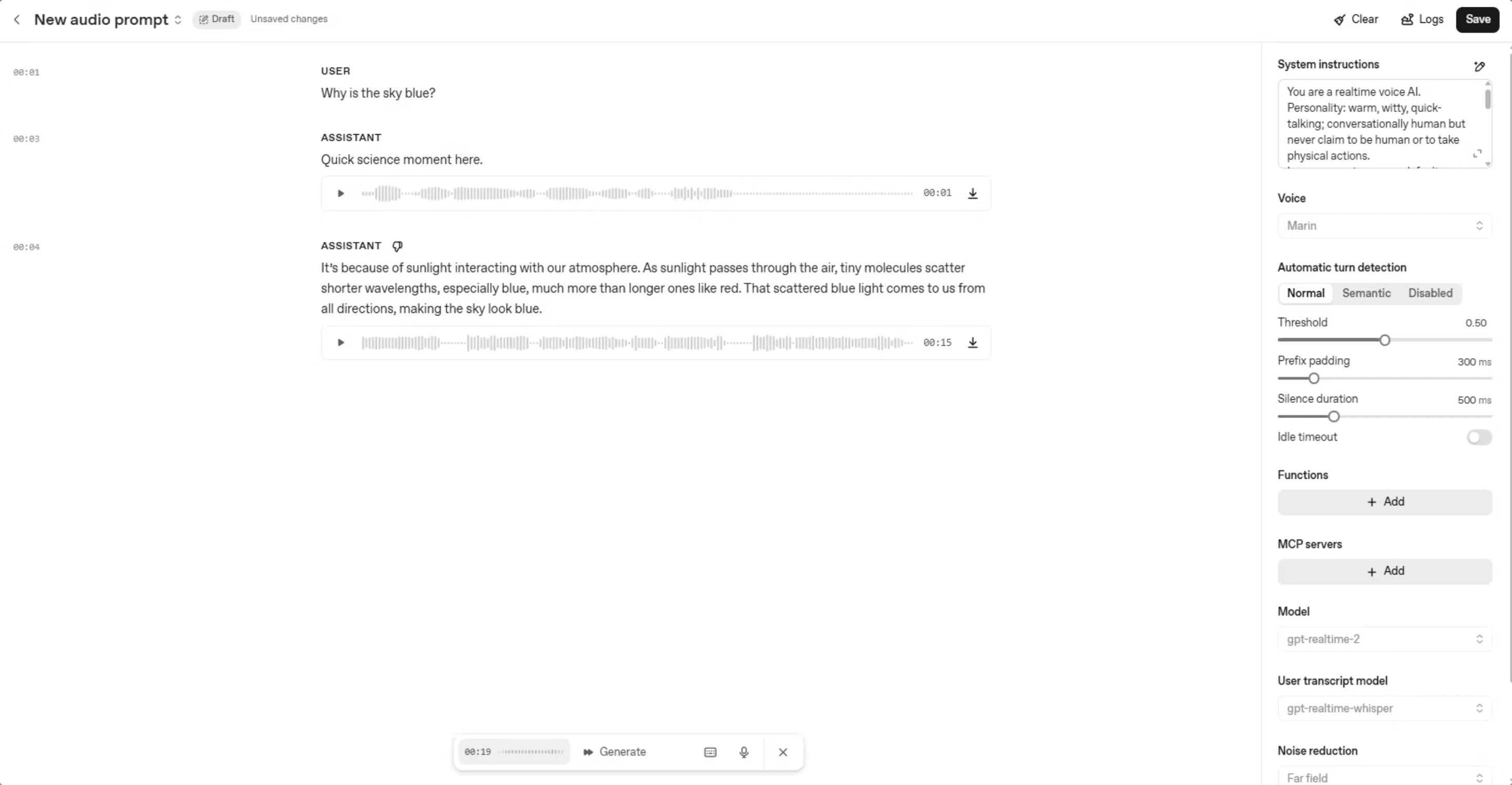
Once the session is configured, you start it and simply talk. Ask it something like “Why is the sky blue?” and it answers back in voice while your transcript appears alongside. The Playground is ideal for exploring behavior quickly, but to build something you can run and extend, you move to code.
Building a Voice Assistant
The example scripts for this tutorial live in the godfreynolan/realtime-api repository: app1.py for the voice assistant, app1a.py for a customized variant, app2.py for translation, and app3.py for transcription. Clone it to follow along.
The voice assistant in app1.py is the realtime equivalent of a GPT-5 chat: you talk, the model thinks, and it talks back. Unlike the standard chat APIs, it has full access to the model’s knowledge while running over a persistent connection instead of one request per turn.
Start by installing the libraries the script imports.
You also need an OpenAI API key. Create one in the OpenAI platform and place it in a config.py file, where the script reads it as config.OPENAI_API_KEY.
Connecting to the Realtime WebSocket
Talking to a realtime model means talking to a WebSocket, not posting JSON to an HTTP endpoint. The connection in main() targets the model by name in the URL and authenticates with a bearer token in the header:
The socket stays open for the whole conversation. Audio flows both ways across it as a stream of JSON events, which is what makes the low-latency, back-and-forth experience possible.
Configuring the session
Once the socket opens, the first thing you send is a session.update event that describes how the session should behave. This is where you pick the model, the modalities, the audio formats, and the instructions.
The model is gpt-realtime-2, and the output modality is audio so it speaks its replies. Both directions use PCM sampled at 24000 Hz. On the input side, noise_reduction is set to near_field for close-mic use, and the transcription block routes your speech through gpt-realtime-whisper so you also get text, which matters because you cannot always hear the audio over a recording or stream. The output block sets the assistant’s voice, here marin. The instructions set the persona, and reasoning.effort is "low" for fast, straightforward answers; you can raise it for harder requests. The input block also carries the turn_detection settings, which the next section covers on their own.
Streaming microphone audio
The audio path captures the microphone in small chunks with sounddevice, then streams those chunks to the model. The sender thread pulls raw PCM frames off a queue, base64-encodes them, and appends them to the input buffer:
Each input_audio_buffer.append event hands a fragment of your speech to the model in near real time. On the way back, assistant audio arrives as response.output_audio.delta events that are decoded and pushed to a playback queue for the speakers, while transcript deltas are printed so you can follow along in text.
Here is what you see when you run app1.py and ask it a question:
That gets audio flowing in both directions. Next you need to decide when the model should stop listening and start speaking, and how to keep its own voice out of the microphone.
Turn Detection, Playback, and Echo Control
With the WebSocket open and audio flowing in both directions, the next problem is timing: how does the model know when you have finished speaking, and how do you keep its own voice out of the microphone?
Knowing when it is the model’s turn
Turn detection lives inside the audio input config. Rather than counting milliseconds of silence, semantic voice activity detection reads speech cues and intonation to decide when your turn has ended.
The "eagerness": "medium" setting balances how quickly the model jumps in. Because "create_response" is False, the model never replies on its own. Instead, when your transcript finishes (conversation.item.input_audio_transcription.completed), the client sends a response.create event. The assistant’s speech then streams back on response.output_audio.delta, where each base64 chunk is decoded and pushed to the playback queue.
Keeping the assistant out of its own ears
On laptop speakers, the microphone hears the assistant talking and feeds that audio straight back to the model, creating a feedback loop. The MUTE_MIC_DURING_ASSISTANT flag and a short cooldown solve this by gating the microphone while the assistant speaks and for a moment afterward.
The audio input callback calls this function on every chunk and returns early when it is True, so nothing reaches the model during playback. The ASSISTANT_COOLDOWN_MS window of 800 milliseconds covers the echo tail after the last chunk plays.
Allowing barge-in
If you wear headphones, the feedback loop disappears and you can interrupt mid-sentence. Set MUTE_MIC_DURING_ASSISTANT = False, and interrupt_response flips to True. When the model detects fresh speech, handle_barge_in() drains the output queue and sends a conversation.item.truncate event so the server stops tracking audio you never heard.
These controls decide when the assistant speaks and whether it can be cut off. Next, you will shape how it speaks by rewriting its instructions to give it a distinct persona.
Reshaping the Assistant’s Persona
The behavior of a gpt-realtime-2 agent lives almost entirely in one place: the instructions string inside the session config. The audio plumbing, turn detection, echo control, and WebSocket lifecycle are all generic. To specialize the agent for a domain, you rewrite that string and leave everything else untouched.
Take the same voice-assistant code from the previous sections, save it as app1a.py, and swap the friendly-assistant prompt for one that turns the model into a recruiter:
A few sentences do all the work here. The first line sets the role, the next pins down domain expertise (PX4, QGroundControl, and drone tooling), and the timing instruction shapes the interaction flow so the model holds back for a beat after the candidate stops talking, then comes back with a short interview question. The remaining lines carry over the same transcription and direct-answer rules the assistant already used.
Here is what happens when you run app1a.py and greet the recruiter:
That is the entire change. With one prompt edit you have recast a general voice assistant as a domain-specific screening or filtering tool, and the pattern generalizes to any field you can describe in plain language.
When you do not want the model to reason or answer at all, only to convert one language into another, you reach for a different model. That is where gpt-realtime-translate comes in.
Live Translation with gpt-realtime-translate
Not every voice task needs a model that thinks. When your goal is to carry speech from one language into another, gpt-realtime-translate does exactly that and nothing more. It performs live speech-to-speech translation, but it does not answer questions or hold a conversation, so you typically pair it with another model when you need real interaction. It currently supports 70 input languages mapping to 13 output languages, so the relationship is not one to one.
The translation client lives in app2.py, and much of it is the same code you have already seen. You still capture the microphone with sounddevice, split the audio into chunks, and stream those chunks to a WebSocket. The main change is that you open the WebSocket against a new model and trim the session down to translation settings; by and large everything else stays as it was. One difference upstream is chunk size: translation works best with 200 ms chunks over the connection, which is larger than what a conversational agent typically sends.
Configuring the translation session
Two things set this session apart: the connection URL names the translation model, and the session.update payload is smaller than the assistant’s. You set the input transcription model, an input noise reduction mode, and a target output language, and that is the whole configuration.
TARGET_LANGUAGE is a short language code such as "es" for Spanish. The script lists several supported examples: es, pt, fr, ja, ru, zh, de, ko, hi, id, vi, it, en. Change that one value and the same code translates into a different language. The noise_reduction mode is set to near_field, which suits minimal background noise; switch it to far field when there is more noise to contend with.
Handling the streamed results
Responses arrive incrementally over the socket. The translated audio comes back on session.output_audio.delta, and a detail worth noting is that the audio bytes live in event["delta"], not event["audio"]. Transcripts stream separately: your source speech on session.input_transcript.delta and the translation on session.output_transcript.delta.
Decoded audio chunks go onto a playback queue and play through the speakers as they arrive, while the transcript deltas print so you can read both sides of the translation. The result is spoken input in one language and spoken output in another, with text to confirm what was heard and said.
Here is what you see when you run app2.py, speaking English with Spanish output:
Translation turns speech into other speech, but sometimes you only need the words on the page. For that, the final model focuses purely on transcription.
Live Transcription with gpt-realtime-whisper
The third model, gpt-realtime-whisper, turns voice input into streaming text. It does no reasoning and holds no conversation. It simply transcribes what it hears, which makes it valuable on its own for live captioning and equally handy beside the other models when you want to read their input as text.
You open the connection with a transcription intent rather than a model name in the query string:
The session is configured for transcription instead of a full voice agent. You set the session type to transcription, accept PCM audio at 24000 Hz, name gpt-realtime-whisper as the transcription model with English as the language, and set turn_detection to None. That last choice hands turn control to the client, so your own code decides when a span of speech is ready to transcribe.
Because you control the turns, the capture loop has two jobs: feed audio and decide when to commit it. sounddevice captures microphone chunks, and a root-mean-square check drops near-silent ones before they are ever queued, so background quiet never reaches the model.
Surviving chunks are sent with input_audio_buffer.append. A separate thread wakes every few seconds and sends input_audio_buffer.commit to ask for a transcript, but if too few chunks arrived or the loudest one stayed below MIN_RMS_BEFORE_COMMIT, it sends input_audio_buffer.clear instead and discards the audio. Finished text arrives on conversation.item.input_audio_transcription.completed, where you read the transcript field and print it.
With all three models covered, you now have the full toolkit for real-time voice, and it is worth stepping back to see how the pieces fit together.
Conclusion
An earlier project wired the Realtime API to Twilio and an MCP server using WebRTC instead of web sockets to fly a drone over a phone call. Feel free to check it out for an example of how to push the boundaries with the real-time voice APIs.
Fly a Drone with a Phone Call (article): https://www.riis.com/blog/fly-a-drone-with-a-phone-call
Fly a Drone with a Phone Call (video): https://www.youtube.com/watch?v=FNSSFs5XRdE
You now have the three building blocks for real-time voice: a conversational agent with gpt-realtime-2, live translation with gpt-realtime-translate, and live transcription with gpt-realtime-whisper. The plumbing barely changes between them, so once you have one model running, the rest come down to pointing at a different model and trimming the session config to fit the job.
Definitely, give them a try on your own projects. Wire the voice agent into a customer service line, give your website a chat people can actually talk to, stand up a live translator for a multilingual call, or use transcription to caption a meeting as it happens. Literally think of anything you’d rather tell a program to do in natural language and give it a shot.
We can’t wait to see what you build!
Additional Resources
https://openai.com/index/advancing-voice-intelligence-with-new-models-in-the-api/
https://www.braincuber.com/tutorial/openai-gpt-realtime-2-api-tutorial
https://gist.github.com/JewelsHovan/aeb07da8f8e092164da554ae5c2c86b8
https://goldcast.ondemand.goldcast.io/on-demand/3c14c9d7-c6e8-48b6-bba6-69140c69e1c6
GitHub Repository: https://github.com/godfreynolan/realtime-api